Of course! Here is a comprehensive guide to using the Python Imaging Library (PIL), specifically its modern fork Pillow, on Windows.
What is PIL and Pillow?
- PIL (Python Imaging Library): This was the original, go-to library for image processing in Python. Unfortunately, development of PIL stalled around 2009, and it doesn't support Python 3.
- Pillow: This is the "friendly fork" of PIL. It was created to bring PIL into the modern era. It's actively maintained, supports Python 2 and 3, and is the de-facto standard for image manipulation in Python.
The most important thing to remember: When people say "PIL on Windows", they almost always mean installing and using Pillow.
Installation on Windows
The easiest way to install Pillow on Windows is using pip, Python's package installer.
Prerequisites
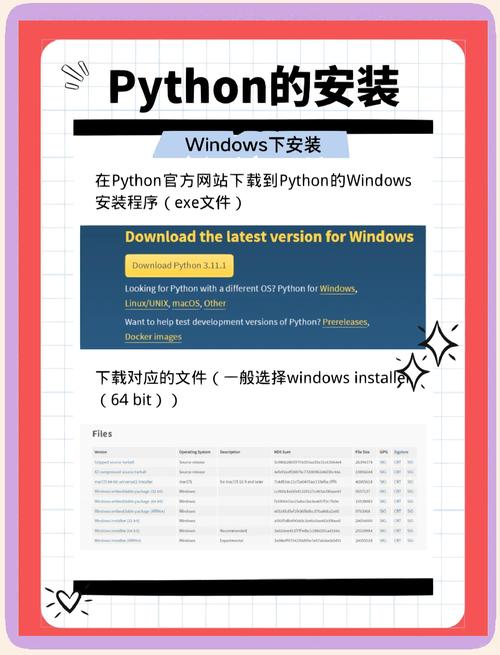
Make sure you have Python installed. If you don't, download it from the official Python website: python.org. Crucially, during installation, check the box that says "Add Python to PATH".
Step-by-Step Installation
-
Open Command Prompt or PowerShell:
 (图片来源网络,侵删)
- Press the Windows Key.
- Type
cmdorpowershelland press Enter.
-
Verify Python and Pip are in your PATH:
- Type the following command and press Enter. You should see the version number of Python you installed.
python --version
- Now, check for pip. You should also see a version number.
pip --version
- Type the following command and press Enter. You should see the version number of Python you installed.
-
Install Pillow:
- Run the following command in your terminal. This will download and install the latest version of Pillow and its dependencies.
pip install Pillow
- You will see output indicating the download and installation progress.
- Run the following command in your terminal. This will download and install the latest version of Pillow and its dependencies.
That's it! Pillow is now installed and ready to use.
Quick Start: Basic Image Operations
Let's write a simple Python script to perform some common image tasks.
Step 1: Get a Sample Image
For this example, you need an image file. Create a folder on your desktop, for example, C:\Users\YourUsername\Desktop\python_images. Save a sample image (like sample.jpg) inside this folder.
Step 2: Write the Python Script
- Open a text editor (like Notepad, VS Code, or PyCharm).
- Copy and paste the following code into the editor.
- Important: Change the
image_pathvariable to point to the location of your image file.
# First, import the Image class from the Pillow library
from PIL import Image
# --- 1. OPENING AND DISPLAYING AN IMAGE ---
# Define the path to your image file
# IMPORTANT: Change this path to where your image is located!
image_path = r"C:\Users\YourUsername\Desktop\python_images\sample.jpg"
# The 'r' before the string treats it as a "raw string", preventing issues with backslashes.
try:
    # Open the image file
    img = Image.open(image_path)
    # Print basic information about the image
    print(f"Image filename: {img.filename}")
    print(f"Image format: {img.format}")
    print(f"Image mode: {img.mode}") # e.g., RGB, L (grayscale)
    print(f"Image size: {img.size}") # (width, height) in pixels
    # Display the image (this will open it in your default image viewer)
    # img.show()
except FileNotFoundError:
    print(f"Error: The file was not found at '{image_path}'")
    print("Please make sure the path is correct and the image exists.")
except Exception as e:
    print(f"An error occurred: {e}")
print("-" * 20)
# --- 2. RESIZING AN IMAGE ---
if 'img' in locals(): # Check if the image was successfully opened
    # Create a thumbnail (a resized version that maintains aspect ratio)
    # The thumbnail method modifies the image in-place.
    img.thumbnail((200, 200))
    # Save the resized image
    # We use a different name to avoid overwriting the original
    resized_path = r"C:\Users\YourUsername\Desktop\python_images\resized_sample.jpg"
    img.save(resized_path)
    print(f"Image resized and saved to: {resized_path}")
    print(f"New image size: {img.size}")
# --- 3. CROPPING AN IMAGE ---
if 'img' in locals():
    # Define the crop box as a 4-tuple: (left, upper, right, lower)
    # These are coordinates in pixels.
    # Let's crop a 100x100 pixel box from the top-left corner.
    crop_box = (0, 0, 100, 100)
    cropped_img = img.crop(crop_box)
    # Save the cropped image
    cropped_path = r"C:\Users\YourUsername\Desktop\python_images\cropped_sample.jpg"
    cropped_img.save(cropped_path)
    print(f"Image cropped and saved to: {cropped_path}")
# --- 4. CHANGING IMAGE MODE (e.g., to Grayscale) ---
if 'img' in locals():
    # Convert the image to grayscale
    gray_img = img.convert("L")
    # Save the grayscale image
    gray_path = r"C:\Users\YourUsername\Desktop\python_images\gray_sample.jpg"
    gray_img.save(gray_path)
    print(f"Image converted to grayscale and saved to: {gray_path}")
Step 3: Run the Script
- Save the file in your
python_imagesfolder with a name likeprocess_image.py. - Open your terminal (Command Prompt or PowerShell) and navigate to that folder:
cd C:\Users\YourUsername\Desktop\python_images
- Run the script using Python:
python process_image.py
You should see the output in your terminal, and new image files (resized_sample.jpg, cropped_sample.jpg, gray_sample.jpg) will appear in your folder.
Common Issues and Solutions on Windows
Issue 1: 'pip' is not recognized as an internal or external command...
This means Python's Scripts directory is not in your system's PATH environment variable.
Solution:
- Press the Windows Key, type "Environment Variables", and select "Edit the system environment variables".
- In the System Properties window, click the "Environment Variables..." button.
- In the "System variables" section (the bottom half), find and select the
Pathvariable, then click "Edit...". - Click "New" and add the path to your Python
Scriptsfolder. It will look something like this:C:\Users\YourUsername\AppData\Local\Programs\Python\Python311\Scripts\(ChangePython311to your actual Python version). - Click OK on all windows to save the changes.
- Close and re-open your Command Prompt/PowerShell window for the changes to take effect.
Issue 2: ModuleNotFoundError: No module named 'PIL'
This usually means Pillow was not installed correctly, or you are running the script with a different Python version than the one where Pillow is installed.
Solution:
- Make sure you installed Pillow with the correct Python version:
# If you have multiple Python versions, be specific
py -3 -m pip install Pillow
# or
python3 -m pip install Pillow
- Try reinstalling Pillow to be sure:
pip uninstall Pillow
pip install Pillow
Issue 3: OSError: cannot open image file
This is a FileNotFoundError in disguise. It means the path to your image file is incorrect.
Solution:
- Use Raw Strings: Always prefix your file path with
rlike this:r"C:\path\to\your\image.jpg". This tells Python to treat backslashes\as literal characters and not as escape characters (like\nfor newline). - Check for Typos: Double-check every character in the path.
- Use Forward Slashes: As an alternative, you can often use forward slashes , which work on Windows too:
"C:/path/to/your/image.jpg".
Useful Resources
- Pillow Official Documentation: https://pillow.readthedocs.io/ - The best place to find detailed information on all modules and functions.
- Pillow GitHub Repository: https://github.com/python-pillow/Pillow - For source code, issue tracking, and releases.
- Image Processing with Pillow (Real Python Tutorial): https://realpython.com/python-pillow/ - An excellent, in-depth tutorial.