Of course! Here is a comprehensive guide on how to install and manage Java 1.8 (also known as Java 8) on Ubuntu.
Why Java 1.8 on Ubuntu?
Java 1.8 is a Long-Term Support (LTS) version, which means it received updates and security patches for many years. While newer versions (like 11, 17, and 21) are now available, many legacy applications, enterprise systems, and older projects still require Java 8.
There are two primary ways to install Java on Ubuntu:
- Using the APT Package Manager (Recommended for Beginners): This is the simplest method. It downloads a pre-compiled version from Ubuntu's repositories. It's easy but may not be the absolute latest update of Java 8.
- Manual Installation (Recommended for Developers/Sysadmins): This gives you more control, allowing you to install the official Oracle JDK or a specific build from Adoptium (formerly AdoptOpenJDK). This is the preferred method for ensuring you have a specific version for development.
Method 1: Install Java 8 using APT (Easy)
This method uses Ubuntu's default repositories. The package name is typically openjdk-8-jdk for the full Development Kit or openjdk-8-jre for the Runtime Environment only.
Step 1: Update Your Package List
Open your terminal and update the package manager's cache to ensure you have the latest information.
sudo apt update
Step 2: Install OpenJDK 8
You can choose to install either the JRE or the JDK.
-
To install the JDK (Java Development Kit): This includes the JRE plus tools needed for development (compiler, debugger, etc.). This is what most developers need.
sudo apt install openjdk-8-jdk
-
To install only the JRE (Java Runtime Environment): This is sufficient if you only need to run Java applications, not develop them.
sudo apt install openjdk-8-jre
During the installation, you may be asked to configure a default Java version. If you are only installing Java 8, you can safely select it as the default.

Step 3: Verify the Installation
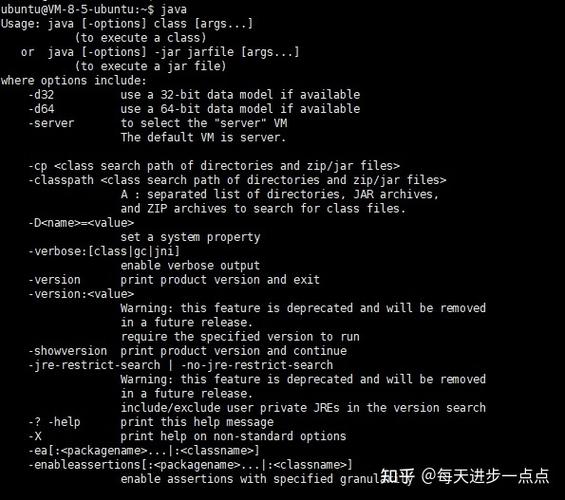
Check the version to confirm it's installed correctly.
java -version
You should see output similar to this:
openjdk version "1.8.0_362"
OpenJDK Runtime Environment (build 1.8.0_362-8u362-ga-0ubuntu1~20.04.1-b08)
OpenJDK 64-Bit Server VM (build 25.362-b08, mixed mode)
Check the compiler (javac) is also available:
javac -version
Output:
javac 1.8.0_362Method 2: Manual Installation (Oracle JDK / Adoptium)
This method gives you the official Oracle JDK or a build from Adoptium. This is often preferred for development as it can have better performance or specific features.
Step 1: Download the JDK
First, decide which JDK you want.
Option A: Adoptium (Eclipse Temurin) - Highly Recommended This is a community-driven build of OpenJDK, fully certified and compatible. It's a great, free alternative to the Oracle JDK.
-
Go to the Adoptium downloads page.
-
Select the JDK 8 version.
-
Choose your operating system (Linux), architecture (x64), and the file type (.tar.gz).
-
Click the download link. You can do this directly in your terminal using
wget. For example, to download the latest JDK 8 build for Linux x64:# Check the Adoptium website for the latest link, as it may change wget -O openjdk-8u41-b04-linux-x64.tar.gz "https://github.com/adoptium/temurin8-binaries/releases/download/jdk8u41-b04/OpenJDK8U-jdk_x64_linux_hotspot_8u41b04.tar.gz"
Option B: Oracle JDK
- Go to the Oracle Java SE Development Kit 8 Downloads page.
- Accept the license agreement.
- Download the
.tar.gzfile for Linux x64. You will need an Oracle account.
Step 2: Install the JDK
Now, let's install the downloaded file.
-
Move the archive to a suitable location, like
/opt. This is a common place for software.sudo mv openjdk-8*.tar.gz /opt/
-
Navigate to the
/optdirectory and extract the archive.cd /opt sudo tar -xzf openjdk-8*.tar.gz
This will create a directory like
jdk8u41-b04orjdk1.8.0_41. -
Create a symbolic link. This makes it easier to update the JDK in the future without changing environment variables.
# Replace 'jdk1.8.0_41' with the actual directory name created by the extraction
sudo ln -s jdk1.8.0_41 java-8
Step 3: Set Up Environment Variables
You need to tell your system where to find the Java binaries.
-
Set the
JAVA_HOMEenvironment variable. This variable points to the root of your JDK installation.# Get the path of the symbolic link we just created JAVA_HOME="/opt/java-8" # Add this line to your ~/.bashrc file to make it permanent for your user echo "export JAVA_HOME=$JAVA_HOME" >> ~/.bashrc # Add the JDK's bin directory to your PATH echo "export PATH=\$PATH:\$JAVA_HOME/bin" >> ~/.bashrc
-
Apply the changes. Either open a new terminal or run the following command to load the changes into your current session.
source ~/.bashrc
Step 4: Verify the Installation
Check the version again to ensure it's using your manually installed JDK.
java -version
You should see output reflecting the version you downloaded, for example:
openjdk version "1.8.0_41"
OpenJDK Runtime Environment Temurin-8u41-b04 (build 1.8.0_41-b04)
OpenJDK 64-Bit Server VM Temurin-8u41-b04 (build 25.41-b04, mixed mode)
Managing Multiple Java Versions
It's common to have multiple Java versions installed (e.g., Java 8 for an old project and Java 17 for a new one). The update-java-alternatives tool is the standard way to manage this on Ubuntu.
-
List all installed Java versions:
update-java-alternatives --list
You will see output like this, showing the different Java versions available on your system:
java-1.8.0-openjdk-amd64 1081 /usr/lib/jvm/java-1.8.0-openjdk-amd64 java-11-openjdk-amd64 2041 /usr/lib/jvm/java-11-openjdk-amd64 /opt/java-8 2 /opt/java-8 -
Set a default Java version: To switch to your manually installed Java 8, use the name from the list (in this case,
/opt/java-8).sudo update-java-alternatives --set /opt/java-8
-
Verify the change:
java -version
The output should now reflect the version you just set as default. You can switch back to another version anytime by running the
update-java-alternativescommand again.