Of course! Working with PDFs in a Python Tkinter application is a common requirement. You can't display a PDF directly on a Tkinter canvas like you can with an image (.png, .jpg). Instead, you need a library to convert the PDF into a format Tkinter can understand, typically a series of images.
Here’s a complete guide covering the most popular and effective methods.
The Core Concept: PDF to Image
The general workflow is:
- Load the PDF file.
- Render each page of the PDF as a high-quality image (e.g., a PNG).
- Display the image on a Tkinter
Canvas. - Add navigation controls (buttons for next/previous page, a scrollbar).
Method 1: The Easiest & Most Common (Using PyMuPDF)
This is the recommended approach for most use cases. PyMuPDF (also known as fitz) is incredibly fast, has a small memory footprint, and produces high-quality images.
Step 1: Install the Library
First, you need to install PyMuPDF. It's a simple pip command.
pip install PyMuPDF
Step 2: Create the Tkinter Application
This script will create a window with a canvas to display the PDF and buttons to navigate between pages.
import tkinter as tk
from tkinter import filedialog
import fitz  # PyMuPDF
class PDFViewer:
    def __init__(self, root):
        self.root = root
        self.root.title("PDF Viewer")
        self.root.geometry("800x600")
        # --- Variables ---
        self.pdf_document = None
        self.current_page = 0
        self.num_pages = 0
        self.image_on_canvas = None
        # --- UI Elements ---
        # Frame for buttons
        self.button_frame = tk.Frame(self.root)
        self.button_frame.pack(side=tk.TOP, fill=tk.X, padx=5, pady=5)
        self.open_button = tk.Button(self.button_frame, text="Open PDF", command=self.open_pdf)
        self.open_button.pack(side=tk.LEFT, padx=5)
        self.prev_button = tk.Button(self.button_frame, text="Previous", command=self.prev_page, state=tk.DISABLED)
        self.prev_button.pack(side=tk.LEFT, padx=5)
        self.next_button = tk.Button(self.button_frame, text="Next", command=self.next_page, state=tk.DISABLED)
        self.next_button.pack(side=tk.LEFT, padx=5)
        self.page_label = tk.Label(self.button_frame, text="Page: 0 / 0")
        self.page_label.pack(side=tk.RIGHT, padx=5)
        # Canvas for displaying the PDF page
        self.canvas = tk.Canvas(self.root)
        self.canvas.pack(fill=tk.BOTH, expand=True)
        # Scrollbar for the canvas
        self.scrollbar = tk.Scrollbar(self.canvas, orient="vertical", command=self.canvas.yview)
        self.scrollbar.pack(side="right", fill="y")
        self.canvas.configure(yscrollcommand=self.scrollbar.set)
    def open_pdf(self):
        file_path = filedialog.askopenfilename(filetypes=[("PDF Files", "*.pdf")])
        if not file_path:
            return
        try:
            self.pdf_document = fitz.open(file_path)
            self.num_pages = len(self.pdf_document)
            self.current_page = 0
            # Enable/disable buttons
            self.prev_button.config(state=tk.NORMAL if self.num_pages > 1 else tk.DISABLED)
            self.next_button.config(state=tk.NORMAL if self.num_pages > 1 else tk.DISABLED)
            self.update_page_label()
            self.display_page()
        except Exception as e:
            print(f"Error opening PDF: {e}")
            # You could show a messagebox here for a better user experience
    def display_page(self):
        if self.pdf_document is None:
            return
        # Get the page
        page = self.pdf_document[self.current_page]
        # Calculate zoom factor to fit the page width to the canvas
        # You can adjust the zoom level here (e.g., 2.0 for 200%)
        zoom = 1.5
        mat = fitz.Matrix(zoom, zoom)
        pix = page.get_pixmap(matrix=mat)
        # Convert PyMuPDF pixmap to a PhotoImage
        # This is the crucial step for Tkinter compatibility
        img = tk.PhotoImage(data=pix.tobytes("ppm"))
        # Clear previous image
        self.canvas.delete("all")
        # Display the new image
        self.canvas.create_image(0, 0, anchor="nw", image=img)
        # Store a reference to the image to prevent garbage collection
        self.image_on_canvas = img
        # Update scroll region
        self.canvas.configure(scrollregion=self.canvas.bbox("all"))
    def prev_page(self):
        if self.current_page > 0:
            self.current_page -= 1
            self.display_page()
            self.update_page_label()
            self.update_button_states()
    def next_page(self):
        if self.current_page < self.num_pages - 1:
            self.current_page += 1
            self.display_page()
            self.update_page_label()
            self.update_button_states()
    def update_page_label(self):
        self.page_label.config(text=f"Page: {self.current_page + 1} / {self.num_pages}")
    def update_button_states(self):
        self.prev_button.config(state=tk.NORMAL if self.current_page > 0 else tk.DISABLED)
        self.next_button.config(state=tk.NORMAL if self.current_page < self.num_pages - 1 else tk.DISABLED)
if __name__ == "__main__":
    root = tk.Tk()
    app = PDFViewer(root)
    root.mainloop()
How to Run the Code:
- Save the code as a Python file (e.g.,
pdf_viewer.py). - Make sure you have
tkinter(usually comes with Python) andPyMuPDFinstalled. - Run the script from your terminal:
python pdf_viewer.py. - Click "Open PDF" and select a PDF file from your computer.
Method 2: Alternative (Using pdf2image)
pdf2image is another excellent library. It uses poppler for the underlying conversion, which is a powerful PDF rendering engine.
Step 1: Install Libraries
You need to install both pdf2image and its dependency, poppler.
pip install pdf2image
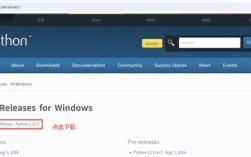
For Windows: Download the latest binary release of poppler from here. Unzip it and add the bin directory to your system's PATH environment variable. This is the most important step.
For macOS: Use Homebrew:
brew install poppler
For Linux (Debian/Ubuntu):
sudo apt-get update
sudo apt-get install poppler-utils
Step 2: The Tkinter Application Code
The structure is very similar, but the image generation part is different.
import tkinter as tk
from tkinter import filedialog
from pdf2image import convert_from_path
class PDFViewer_pdf2image:
    def __init__(self, root):
        self.root = root
        self.root.title("PDF Viewer (pdf2image)")
        self.root.geometry("800x600")
        self.images = []
        self.current_page_index = 0
        # --- UI Elements (same as before) ---
        self.button_frame = tk.Frame(self.root)
        self.button_frame.pack(side=tk.TOP, fill=tk.X, padx=5, pady=5)
        self.open_button = tk.Button(self.button_frame, text="Open PDF", command=self.open_pdf)
        self.open_button.pack(side=tk.LEFT, padx=5)
        self.prev_button = tk.Button(self.button_frame, text="Previous", command=self.prev_page, state=tk.DISABLED)
        self.prev_button.pack(side=tk.LEFT, padx=5)
        self.next_button = tk.Button(self.button_frame, text="Next", command=self.next_page, state=tk.DISABLED)
        self.next_button.pack(side=tk.LEFT, padx=5)
        self.page_label = tk.Label(self.button_frame, text="Page: 0 / 0")
        self.page_label.pack(side=tk.RIGHT, padx=5)
        self.canvas = tk.Canvas(self.root)
        self.canvas.pack(fill=tk.BOTH, expand=True)
        self.scrollbar = tk.Scrollbar(self.canvas, orient="vertical", command=self.canvas.yview)
        self.scrollbar.pack(side="right", fill="y")
        self.canvas.configure(yscrollcommand=self.scrollbar.set)
        self.image_on_canvas = None
    def open_pdf(self):
        file_path = filedialog.askopenfilename(filetypes=[("PDF Files", "*.pdf")])
        if not file_path:
            return
        try:
            # Convert all pages to images at once. This can be memory intensive for large PDFs.
            # dpi (dots per inch) controls the quality of the output image.
            self.images = convert_from_path(file_path, dpi=150)
            self.current_page_index = 0
            self.prev_button.config(state=tk.NORMAL if len(self.images) > 1 else tk.DISABLED)
            self.next_button.config(state=tk.NORMAL if len(self.images) > 1 else tk.DISABLED)
            self.update_page_label()
            self.display_page()
        except Exception as e:
            print(f"Error opening PDF: {e}")
            # Check if poppler is installed and in PATH if you get an error here
    def display_page(self):
        if not self.images:
            return
        # Get the current image
        img = self.images[self.current_page_index]
        # Convert PIL Image to PhotoImage
        # Note: Tkinter doesn't support PIL images directly, so we must convert
        # We need to keep a reference to the original PIL image
        photo_img = tk.PhotoImage(data=img.tobytes(), format='PPM')
        self.canvas.delete("all")
        self.canvas.create_image(0, 0, anchor="nw", image=photo_img)
        # Keep a reference to prevent garbage collection
        self.image_on_canvas = photo_img
        self.canvas.configure(scrollregion=self.canvas.bbox("all"))
    # prev_page, next_page, update_page_label, update_button_states are the same as in Method 1
    # For brevity, they are omitted here but should be included in your full code.
    def prev_page(self):
        if self.current_page_index > 0:
            self.current_page_index -= 1
            self.display_page()
            self.update_page_label()
            self.update_button_states()
    def next_page(self):
        if self.current_page_index < len(self.images) - 1:
            self.current_page_index += 1
            self.display_page()
            self.update_page_label()
            self.update_button_states()
    def update_page_label(self):
        self.page_label.config(text=f"Page: {self.current_page_index + 1} / {len(self.images)}")
    def update_button_states(self):
        self.prev_button.config(state=tk.NORMAL if self.current_page_index > 0 else tk.DISABLED)
        self.next_button.config(state=tk.NORMAL if self.current_page_index < len(self.images) - 1 else tk.DISABLED)
if __name__ == "__main__":
    root = tk.Tk()
    app = PDFViewer_pdf2image(root)
    root.mainloop()
Comparison and Recommendation
| Feature | PyMuPDF (Method 1) |
pdf2image (Method 2) |
|---|---|---|
| Ease of Use | Easier. No external dependencies to install or configure on macOS/Linux. | Requires installing poppler, which can be tricky on Windows. |
| Performance | Very Fast. Low memory footprint. Renders pages on-demand. | Slower. Converts all pages to images at once, which can use a lot of RAM for large PDFs. |
| Image Quality | Excellent, highly configurable. | Excellent, controlled by dpi setting. |
| Dependencies | Single pip install. |
pip install + poppler binaries. |
| Best For | Most applications. It's the modern, standard, and most robust solution. | When you need the specific features of the poppler engine or prefer a PIL-based workflow. |
Final Recommendation: Use Method 1 (PyMuPDF). It's simpler to set up, faster, and more memory-efficient, making it the superior choice for building a PDF viewer in Tkinter.