Of course! Here's a comprehensive guide to using the Mat class in OpenCV with Java, covering everything from basic creation to common operations.
What is a Mat?
In OpenCV, the Mat (Matrix) class is the primary container for images or any 2D or multi-dimensional array. It's a C++ class, but OpenCV provides a complete and well-designed Java wrapper for it.
Key advantages of Mat over older OpenCV structures (like IplImage):
- Automatic Memory Management: You don't have to manually allocate and deallocate memory. Java's garbage collector handles it.
- Efficiency: It avoids unnecessary data copying. Operations are performed in-place or on the underlying data buffer when possible.
- Flexibility: It can store not just 8-bit 3-channel (BGR) images, but also various data types (e.g., 32-bit floating point, 16-bit unsigned) and numbers of channels.
Creating a Mat
There are several ways to create a Mat object.
a) Creating an Empty Mat
You can create a Mat with a specified size and data type.
import org.opencv.core.Mat;
import org.opencv.core.CvType; // Contains constants for data types
public class MatCreation {
    public static void main(String[] args) {
        // Load the OpenCV native library
        System.loadLibrary(Core.NATIVE_LIBRARY_NAME);
        // Create a 100x100 matrix of 8-bit unsigned integers (CV_8U)
        // with 3 channels (BGR image)
        Mat emptyMat = new Mat(100, 100, CvType.CV_8UC3);
        System.out.println("Created an empty Mat: " + emptyMat);
        // Output: Created an empty Mat: Mat [ 100*100*CV_8UC3, isCont=true, isSubmat=false, nativeObj=0x... ]
    }
}
Understanding CvType:
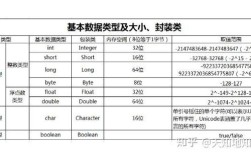
The CvType constant encodes three pieces of information:
- Depth (Data Type): The number of bits per element.
CV_8U: 8-bit unsigned integer (0-255). Most common for images.CV_8S: 8-bit signed integer.CV_16U: 16-bit unsigned integer.CV_32F: 32-bit floating-point number. Common for processing.CV_64F: 64-bit floating-point number.
- Channels: The number of data channels per pixel.
C: 1 channel (e.g., Grayscale)UC3: 3 channels (e.g., BGR or RGB)UC4: 4 channels (e.g., BGRA)
So, CvType.CV_8UC3 means: 8-bit unsigned integers, 3 channels.
b) Creating a Mat with a Scalar Value
You can initialize all elements of the Mat with a specific value. A Scalar is a 4-element vector used to initialize or set values.
import org.opencv.core.Mat;
import org.opencv.core.Scalar;
import org.opencv.core.CvType;
public class MatWithScalar {
    public static void main(String[] args) {
        System.loadLibrary(Core.NATIVE_LIBRARY_NAME);
        // Create a 3x3 Mat of 64-bit floats, initialized with all zeros
        Mat zeroMat = new Mat(3, 3, CvType.CV_64FC(new Scalar(0.0)));
        // Create a 100x100 BGR image, filled with blue color
        // Scalar(B, G, R)
        Mat blueMat = new Mat(100, 100, CvType.CV_8UC3, new Scalar(255, 0, 0));
        System.out.println("Created a blue Mat: " + blueMat.dump());
        // .dump() prints the matrix data in a readable format
    }
}
c) Creating from a File (Loading an Image)
This is the most common way to get a Mat.
import org.opencv.core.Mat;
import org.opencv.imgcodecs.Imgcodecs; // For image reading/writing
public class LoadImage {
    public static void main(String[] args) {
        System.loadLibrary(Core.NATIVE_LIBRARY_NAME);
        // Path to your image file
        String imagePath = "path/to/your/image.jpg";
        // imread loads the image. The second flag can be:
        // Imgcodecs.IMREAD_COLOR: Loads a 3-channel BGR image. (Default)
        // Imgcodecs.IMREAD_GRAYSCALE: Loads a 1-channel grayscale image.
        // Imgcodecs.IMREAD_UNCHANGED: Loads the image as-is (including alpha channel).
        Mat image = Imgcodecs.imread(imagePath, Imgcodecs.IMREAD_COLOR);
        if (image.empty()) {
            System.out.println("Error: Could not load image.");
            return;
        }
        System.out.println("Successfully loaded image with size: " + image.size());
    }
}
Accessing and Modifying Pixel Data
You should almost never access pixels using raw array indices. It's slow, error-prone, and ignores the internal structure of the Mat. Always use OpenCV's provided methods.
a) get() and put() Methods
These are simple, safe, but slower methods for getting and setting pixel values. They work best for single pixels or small regions.
import org.opencv.core.Mat;
import org.opencv.core.Scalar;
import org.opencv.imgcodecs.Imgcodecs;
public class GetPutPixels {
    public static void main(String[] args) {
        System.loadLibrary(Core.NATIVE_LIBRARY_NAME);
        Mat image = Imgcodecs.imread("path/to/your/image.jpg");
        if (image.empty()) return;
        // --- GET a pixel value ---
        // get(row, col) returns a double[] array
        // The array length corresponds to the number of channels
        double[] pixelData = image.get(50, 50); // Get pixel at row 50, col 50
        if (pixelData != null) {
            System.out.println("Pixel at (50,50) - B: " + pixelData[0] + ", G: " + pixelData[1] + ", R: " + pixelData[2]);
        }
        // --- SET a pixel value ---
        // put(row, col, double[]) sets the pixel value
        // Set the pixel at (100, 100) to pure green
        image.put(100, 100, new double[]{0, 255, 0});
        // Save the modified image
        Imgcodecs.imwrite("modified_image.jpg", image);
    }
}
b) Mat.get() (Bulk Data Access)
To get the entire image data as a 1D Java array, use the get() method with no arguments. This is very useful for passing data to other libraries or for manual processing (though often slower than native OpenCV functions).
// Get the entire image data as a 1D array of doubles
double[] imageData = image.get();
// imageData now contains all pixel values sequentially.
// For a BGR image, the order is B0, G0, R0, B1, G1, R1, ...
Common Mat Operations
a) Copying a Mat
Be careful! mat1 = mat2 only copies the reference, not the data. Both variables will point to the same underlying matrix.
Mat original = Imgcodecs.imread("image.jpg");
// This is a SHALLOW COPY. 'copy' and 'original' refer to the same data.
Mat copy = original;
// Modifying 'copy' will also modify 'original'
copy.put(0, 0, new double[]{255, 0, 0});
System.out.println(original.get(0, 0)[0]); // Will print 255.0
To create a true, independent copy:
// This is a DEEP COPY. 'deepCopy' has its own data buffer.
Mat deepCopy = original.clone();
b) Converting Between Color Spaces
Use the cvtColor function.
import org.opencv.imgproc.Imgproc; // For image processing functions
public class ColorConvert {
    public static void main(String[] args) {
        System.loadLibrary(Core.NATIVE_LIBRARY_NAME);
        Mat bgrImage = Imgcodecs.imread("image.jpg");
        Mat grayImage = new Mat();
        // Convert BGR to Grayscale
        Imgproc.cvtColor(bgrImage, grayImage, Imgproc.COLOR_BGR2GRAY);
        // Save the grayscale image
        Imgcodecs.imwrite("grayscale_image.jpg", grayImage);
    }
}
Common conversion codes:
COLOR_BGR2GRAYCOLOR_BGR2RGBCOLOR_GRAY2BGRCOLOR_BGR2HSV
c) Resizing an Image
Use the resize function.
import org.opencv.imgproc.Imgproc;
public class ResizeImage {
    public static void main(String[] args) {
        System.loadLibrary(Core.NATIVE_LIBRARY_NAME);
        Mat original = Imgcodecs.imread("image.jpg");
        Mat resized = new Mat();
        // Size(new_cols, new_rows)
        Imgproc.resize(original, resized, new Size(300, 200), 0, 0, Imgproc.INTER_AREA);
        Imgcodecs.imwrite("resized_image.jpg", resized);
    }
}
Releasing Memory (Best Practice)
Although Java's Garbage Collector (GC) will eventually clean up Mat objects, it's good practice to explicitly release them when you are done with them, especially in long-running applications. This frees up the native memory immediately and can prevent memory leaks.
public class MatRelease {
    public static void main(String[] args) {
        System.loadLibrary(Core.NATIVE_LIBRARY_NAME);
        Mat image = Imgcodecs.imread("image.jpg");
        // ... do some processing ...
        // Explicitly release the Mat's native memory
        image.release();
        // After release, the Mat object becomes invalid.
        // Any operation on it will throw an exception.
        // image.dump(); // This will cause an error!
    }
}
Complete Example: Grayscale and Save
Here is a full, runnable example that loads an image, converts it to grayscale, and saves it.
import org.opencv.core.Core;
import org.opencv.core.Mat;
import org.opencv.core.Size;
import org.opencv.imgcodecs.Imgcodecs;
import org.opencv.imgproc.Imgproc;
public class SimpleOpenCVExample {
    public static void main(String[] args) {
        // 1. Load the OpenCV native library
        // This path might need to be adjusted based on your setup
        // System.loadLibrary(Core.NATIVE_LIBRARY_NAME);
        // A more robust way for some setups:
        nu.pattern.OpenCV.loadShared();
        System.loadLibrary(Core.NATIVE_LIBRARY_NAME);
        // 2. Define input and output file paths
        String inputImagePath = "resources/lenna.png"; // Assuming 'resources' is in your classpath
        String outputImagePath = "resources/lenna_grayscale.jpg";
        // 3. Load the image
        Mat sourceImage = Imgcodecs.imread(inputImagePath);
        if (sourceImage.empty()) {
            System.err.println("Error: Could not load image at " + inputImagePath);
            return;
        }
        System.out.println("Image loaded successfully. Size: " + sourceImage.size());
        // 4. Create a new Mat for the grayscale image
        Mat grayImage = new Mat();
        // 5. Convert the color image to grayscale
        Imgproc.cvtColor(sourceImage, grayImage, Imgproc.COLOR_BGR2GRAY);
        // 6. Save the grayscale image
        boolean success = Imgcodecs.imwrite(outputImagePath, grayImage);
        if (success) {
            System.out.println("Grayscale image saved successfully to " + outputImagePath);
        } else {
            System.err.println("Error: Failed to save the image.");
        }
        // 7. Release Mats (good practice)
        sourceImage.release();
        grayImage.release();
    }
}
How to Set Up Your Project (Maven)
If you're using Maven, add the OpenCV dependency to your pom.xml. The version should match your OpenCV installation.
<dependencies>
    <dependency>
        <groupId>org.openpnp</groupId>
        <artifactId>opencv</artifactId>
        <version>4.9.0-0</version> <!-- Check for the latest version -->
    </dependency>
</dependencies>
Remember to also place the native OpenCV library file (e.g., opencv_java490.dll on Windows, libopencv_java490.so on Linux, libopencv_java490.jnilib on macOS) in a location where the JVM can find it, or specify the path using -Djava.library.path. The nu.pattern.OpenCV.loadShared(); line can simplify this.