WordPress 插件开发终极指南
本教程将分为以下几个部分:

- 第一部分:准备工作与环境搭建
- 第二部分:创建你的第一个插件(Hello World)
- 第三部分:深入核心功能(创建后台管理页面、添加设置选项)
- 第四部分:与 WordPress 数据库交互(创建数据表)
- 第五部分:创建一个功能完整的短代码
- 第六部分:插件打包、发布与最佳实践
第一部分:准备工作与环境搭建
在开始编码之前,我们需要准备好开发环境。
理解插件的工作原理
WordPress 插件本质上是 PHP 代码的集合,当 WordPress 加载时,它会扫描 wp-content/plugins/ 目录下的所有文件夹和文件,如果一个文件夹中包含一个与同名的 PHP 文件(my-plugin/my-plugin.php),并且这个 PHP 文件头部有特定的注释信息(插件头),WordPress 就会将其识别为一个插件。
必备工具
- 本地服务器环境: 你不能直接在正在运行的网站上开发插件,推荐使用本地环境,最著名的是:
- Local by Flywheel: 一键式 WordPress 本地开发环境,强烈推荐给初学者。
- XAMPP / MAMP: 经典的本地服务器套件,需要手动配置 WordPress。
- 代码编辑器: 一个好的代码编辑器能极大提高你的效率。
- Visual Studio Code (VS Code): 免费、强大、插件丰富,是目前最受欢迎的选择。
- Sublime Text: 轻量、快速,老牌编辑器。
- FTP 客户端: 用于将你的插件文件上传到服务器(如果需要远程开发)。
- FileZilla: 免费、易用。
安装 WordPress
在你的本地服务器环境中安装一个全新的 WordPress 网站用于测试。
第二部分:创建你的第一个插件
让我们从一个最简单的插件开始,确保你的环境一切正常。
步骤 1:创建插件文件夹和文件
- 打开你的 WordPress 安装目录。
- 进入
wp-content/plugins/文件夹。 - 在这里创建一个新的文件夹,命名为
hello-world-plugin。 - 在
hello-world-plugin文件夹内,创建一个新的 PHP 文件,命名为hello-world-plugin.php。
步骤 2:编写插件头信息
打开 hello-world-plugin.php 文件,输入以下代码:
<?php
/**
 * Plugin Name:       Hello World Plugin
 * Plugin URI:        https://example.com/
 * Description:       A simple "Hello, World!" plugin to get started.
 * Version:           1.0.0
 * Requires at least: 5.2
 * Requires PHP:      7.2
 * Author:            Your Name
 * Author URI:        https://example.com/
 * License:           GPL v2 or later
 * License URI:       https://www.gnu.org/licenses/gpl-2.0.html
 * Text Domain:       hello-world
 * Domain Path:       /languages
 */
// If this file is called directly, abort.
if ( ! defined( 'WPINC' ) ) {
    die;
}
解释:
Plugin Name: 必须,插件的显示名称。Plugin URI: 插件的官方网站。Description: 插件的简短描述。Version: 插件的版本号。Requires at least: 最低要求的 WordPress 版本。Requires PHP: 最低要求的 PHP 版本。Author: 插件作者。Author URI: 作者的网站。License: 插件的许可证,GPL v2 或更高版本是 WordPress 生态系统的标准。Text Domain: 用于国际化(翻译)的唯一标识符。if ( ! defined( 'WPINC' ) ): 这是一个安全检查,防止文件被直接访问。
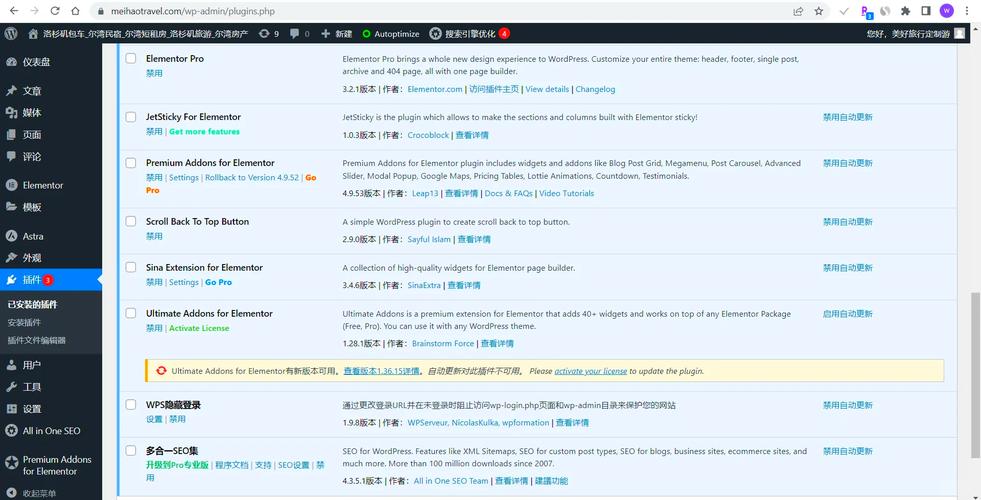
步骤 3:激活插件并测试
- 登录你的 WordPress 后台。
- 在左侧菜单中,点击 插件。
- 你会在列表中看到 "Hello World Plugin"。
- 点击 启用 按钮。
插件已激活!让我们让它做点什么,在 hello-world-plugin.php 文件的末尾,添加以下代码:
// Add a custom function to the 'wp_head' action hook
add_action( 'wp_head', 'hwp_display_hello' );
function hwp_display_hello() {
    echo "<!-- Hello from my plugin! -->";
    echo "<p style='color: red; font-weight: bold;'>Hello, World! from my plugin!</p>";
}
解释:
add_action( 'hook', 'your_function' ): 这是 WordPress 的核心钩子系统。wp_head是一个钩子,它会在网页的<head>部分执行,我们告诉 WordPress:当wp_head被触发时,请执行我们的hwp_display_hello函数。function hwp_display_hello(): 我们自定义的函数。echo ...: 输出一些 HTML 内容。
刷新你的网站首页,查看页面源代码或在页面上寻找红色的 "Hello, World!" 文字,恭喜!你已经成功创建了你的第一个功能插件!
第三部分:深入核心功能
让我们创建一个后台管理页面,让用户可以在插件设置中输入自己的名字,并在前端显示个性化的问候。
步骤 1:创建一个管理菜单
在 hello-world-plugin.php 中,添加以下代码来创建一个管理菜单项:
// Add a menu item to the admin dashboard
add_action( 'admin_menu', 'hwp_add_admin_menu' );
function hwp_add_admin_menu() {
    add_menu_page(
        'Hello World Plugin Settings', // Page Title
        'Hello World',                 // Menu Title
        'manage_options',              // Capability required
        'hello-world-plugin',          // Menu Slug
        'hwp_options_page_html',       // Callback function to display the page
        'dashicons-smiley',            // Icon
        30                             // Position
    );
}
add_menu_page: 用于创建顶级菜单。hwp_options_page_html: 这是回调函数,用于渲染我们即将创建的设置页面。
步骤 2:创建设置页面的 HTML
我们来实现 hwp_options_page_html 函数:
// Callback function to render the options page
function hwp_options_page_html() {
    // Check user capabilities
    if ( ! current_user_can( 'manage_options' ) ) {
        return;
    }
    ?>
    <div class="wrap">
        <h1><?php echo esc_html( get_admin_page_title() ); ?></h1>
        <form action="options.php" method="post">
            <?php
            // Output security fields for the registered setting "hwp_settings_group"
            settings_fields( 'hwp_settings_group' );
            // Output setting sections and their fields
            do_settings_sections( 'hello-world-plugin' );
            // Output save buttons
            submit_button( 'Save Settings' );
            ?>
        </form>
    </div>
    <?php
}
settings_fields,do_settings_sections,submit_button: 这些是 WordPress 提供的辅助函数,用于安全地处理设置表单。
步骤 3:注册设置、字段和部分
为了让上面的表单正常工作,我们需要注册设置、字段和部分,在文件中添加:
// Register settings, sections, and fields
add_action( 'admin_init', 'hwp_settings_init' );
function hwp_settings_init() {
    // Register a new setting
    register_setting( 'hwp_settings_group', 'hwp_options' );
    // Add a new section
    add_settings_section(
        'hwp_main_section',
        'Main Settings',
        'hwp_settings_section_callback',
        'hello-world-plugin'
    );
    // Add a field to the section
    add_settings_field(
        'hwp_name_field',
        'Your Name',
        'hwp_name_field_render',
        'hello-world-plugin',
        'hwp_main_section'
    );
}
// Callback for the section description
function hwp_settings_section_callback() {
    echo 'Configure the settings for the Hello World plugin.';
}
// Callback for rendering the field
function hwp_name_field_render() {
    // Get the option from the database
    $options = get_option( 'hwp_options' );
    $name = isset( $options['name'] ) ? $options['name'] : '';
    ?>
    <input type='text' name='hwp_options[name]' value='<?php echo esc_attr( $name ); ?>'>
    <p class="description">Enter your name to be displayed on the site.</p>
    <?php
}
register_setting: 注册一个设置组,hwp_options将会把所有字段存储为一个数组。add_settings_section: 添加一个设置区域。add_settings_field: 添加一个具体的设置字段。get_option( 'hwp_options' ): 从数据库中获取我们保存的设置。esc_attr(): 输出 HTML 属性时进行转义,防止 XSS 攻击。
步骤 4:使用设置并更新前端显示
让我们修改前端的 hwp_display_hello 函数,使其使用我们保存的设置。
// Modify the front-end display function
function hwp_display_hello() {
    // Get the saved options
    $options = get_option( 'hwp_options' );
    $name = isset( $options['name'] ) ? $options['name'] : 'World';
    echo "<p style='color: red; font-weight: bold;'>Hello, " . esc_html( $name ) . "!</p>";
}
esc_html(): 在输出到 HTML 页面内容时进行转义。
去后台的 "Hello World" 菜单,输入你的名字并保存,刷新你的网站,你应该能看到个性化的问候了!
第四部分:与 WordPress 数据库交互
如果你的插件需要存储大量或复杂的数据(比如文章、评论、用户数据),直接使用 wp_options 表可能不太合适,这时,你需要创建自己的数据表。
步骤 1:创建数据表
最好的时机是在插件激活时创建表,使用 register_activation_hook。
// Hook to run on plugin activation
register_activation_hook( __FILE__, 'hwp_create_db_table' );
function hwp_create_db_table() {
    global $wpdb;
    $charset_collate = $wpdb->get_charset_collate();
    // Table name with the WordPress prefix
    $table_name = $wpdb->prefix . 'hwp_guestbook';
    // SQL statement to create the table
    $sql = "CREATE TABLE $table_name (
        id mediumint(9) NOT NULL AUTO_INCREMENT,
        name varchar(100) NOT NULL,
        message text NOT NULL,
        created_at datetime DEFAULT '0000-00-00 00:00:00' NOT NULL,
        PRIMARY KEY  (id)
    ) $charset_collate;";
    // Include the upgrade file
    require_once( ABSPATH . 'wp-admin/includes/upgrade.php' );
    dbDelta( $sql );
}
$wpdb->prefix: WordPress 的表前缀,如wp_,让你的插件兼容不同的安装。dbDelta(): 一个强大的 WordPress 函数,用于安全地创建或更新数据表。
步骤 2:插入和读取数据
我们创建一个短代码来显示访客留言簿,并允许用户提交留言。
创建提交表单的短代码:
// Shortcode to display the guestbook submission form
add_shortcode( 'guestbook_form', 'hwp_guestbook_form_shortcode' );
function hwp_guestbook_form_shortcode() {
    if ( isset( $_POST['submit_message'] ) ) {
        $name = sanitize_text_field( $_POST['guest_name'] );
        $message = sanitize_textarea_field( $_POST['guest_message'] );
        if ( ! empty( $name ) && ! empty( $message ) ) {
            global $wpdb;
            $table_name = $wpdb->prefix . 'hwp_guestbook';
            $wpdb->insert(
                $table_name,
                array(
                    'name' => $name,
                    'message' => $message,
                    'created_at' => current_time( 'mysql' ),
                )
            );
            echo '<p class="success">Thank you for your message!</p>';
        }
    }
    ob_start(); // Start output buffering
    ?>
    <form method="post">
        <p>
            <label for="guest_name">Name:</label><br>
            <input type="text" id="guest_name" name="guest_name" required>
        </p>
        <p>
            <label for="guest_message">Message:</label><br>
            <textarea id="guest_message" name="guest_message" rows="4" required></textarea>
        </p>
        <p>
            <input type="submit" name="submit_message" value="Submit">
        </p>
    </form>
    <?php
    return ob_get_clean(); // Return the buffered content
}
显示留言的短代码:
// Shortcode to display the guestbook entries
add_shortcode( 'guestbook_entries', 'hwp_guestbook_entries_shortcode' );
function hwp_guestbook_entries_shortcode() {
    global $wpdb;
    $table_name = $wpdb->prefix . 'hwp_guestbook';
    $entries = $wpdb->get_results( "SELECT name, message, created_at FROM $table_name ORDER BY created_at DESC" );
    if ( empty( $entries ) ) {
        return '<p>No messages yet. Be the first to leave a message!</p>';
    }
    $output = '<ul class="guestbook-list">';
    foreach ( $entries as $entry ) {
        $output .= '<li>';
        $output .= '<strong>' . esc_html( $entry->name ) . '</strong> - ' . esc_html( $entry->created_at );
        $output .= '<p>' . esc_textarea( $entry->message ) . '</p>';
        $output .= '</li>';
    }
    $output .= '</ul>';
    return $output;
}
sanitize_text_field(),sanitize_textarea_field(): 清理和验证用户输入,极其重要,用于防止 SQL 注入和 XSS 攻击。$wpdb->insert(): 插入数据。$wpdb->get_results(): 查询多行数据。
你可以在任何文章或页面中使用 [guestbook_form] 和 [guestbook_entries] 短代码来测试。
第五部分:插件打包、发布与最佳实践
当你完成插件开发后,你需要考虑如何打包和发布它。
创建 readme.txt 文件
一个标准的 readme.txt 文件是插件在 WordPress.org 目录中展示的基础,它包含插件描述、安装说明、更新日志等,你可以使用 WordPress.org 插件 readme 生成器 来快速创建。
打包插件
- 将你的插件文件夹(
hello-world-plugin)压缩成一个.zip文件。 - 文件名应该是你的插件slug,
hello-world-plugin.zip。
发布到 WordPress.org
- 访问 WordPress.org 开者者账号。
- 确保你的个人资料已经关联到一个 GPG 密钥(用于代码签名)。
- 在 "Plugins" -> "Add New" 中,上传你的
.zip文件。 - 填写信息,包括
readme.txt的内容。 - 提交审核,审核通过后,你的插件就会出现在官方插件目录中。
最佳实践和重要提示
- 安全性第一:
- 永远不要信任用户输入,始终使用 WordPress 提供的清理和验证函数,如
sanitize_*系列。 - 使用
$wpdb->prepare()来预处理 SQL 查询,防止 SQL 注入。 - *使用 `esc_` 系列** 函数来输出数据到 HTML,防止 XSS 攻击。
- 永远不要信任用户输入,始终使用 WordPress 提供的清理和验证函数,如
- 国际化:
- 使用
__(),_e(),_x()等函数来包裹所有显示给用户的字符串。 - 使用
load_plugin_textdomain()来加载.pot或.po翻译文件。
- 使用
- 代码质量:
- 遵循 WordPress 编码标准。
- 使用
WP_DEBUG和WP_DEBUG_LOG在本地环境中调试代码。
- 性能:
- 尽量减少数据库查询。
- 使用
wp_enqueue_style()和wp_enqueue_script()来正确加载 CSS 和 JS 文件,避免冲突。
学习资源
- 官方文档: Plugin Handbook - 这是最重要的资源,没有之一。
- Codex: Plugin Resources
- 教程网站:
- Smashing Magazine
- Torque Mag
- CSS-Tricks (有很多 WordPress 相关文章)
- 社区:
- WordPress.org Support Forums
- Stack Overflow (使用
wordpress
这份教程为你打下了坚实的基础,去动手创建你自己的插件吧!从简单开始,逐步增加功能,你会发现 WordPress 插件开发是一个非常有创造力和回报的过程。