Of course! "Python, MySQL, and Apache" is a classic and powerful combination for building web applications. Let's break down what each component does, how they work together, and how to get them running.
The Big Picture: A Classic Web Application Stack
Think of it as a restaurant:
- Apache: The Maître d'. It's the front door. It listens for customer requests (web traffic), manages the tables (ports), and directs them to the right person. It can also serve static files like images and CSS directly.
- Python: The Chef. This is where the magic happens. When the Maître d' brings a special request (a dynamic URL), the Python application (the Chef) gets to work. It processes the request, follows a recipe (the code), and prepares the meal (the data).
- MySQL: The Pantry & Refrigerator. This is where all the raw ingredients (data) are stored. The Chef (Python) needs to go to the pantry (MySQL) to get ingredients, follow recipes, and store the finished meals back in the database.
Here's a more technical breakdown:
| Component | Role in the Stack | How it Connects |
|---|---|---|
| Apache | Web Server | Listens for HTTP requests from browsers. Serves static files (HTML, CSS, JS). Forwards dynamic requests to the Python application. |
| Python | Application Logic / Backend | The "brain" of your application. It handles business logic, processes user input, and interacts with the database. |
| MySQL | Database | The "data store." It persists information like user accounts, posts, products, etc. |
How They Work Together: The Request-Response Cycle
- A user types
http://your-app.com/profile/123into their browser. - Apache receives the request. It sees that
/profile/123is a dynamic URL, not a static file likestyle.css. - Apache uses a modular component (like
mod_wsgifor Python) to pass the request over to the Python application. - The Python application receives the request. It parses the URL, sees it needs data for user
123. - The Python application uses a database driver (like
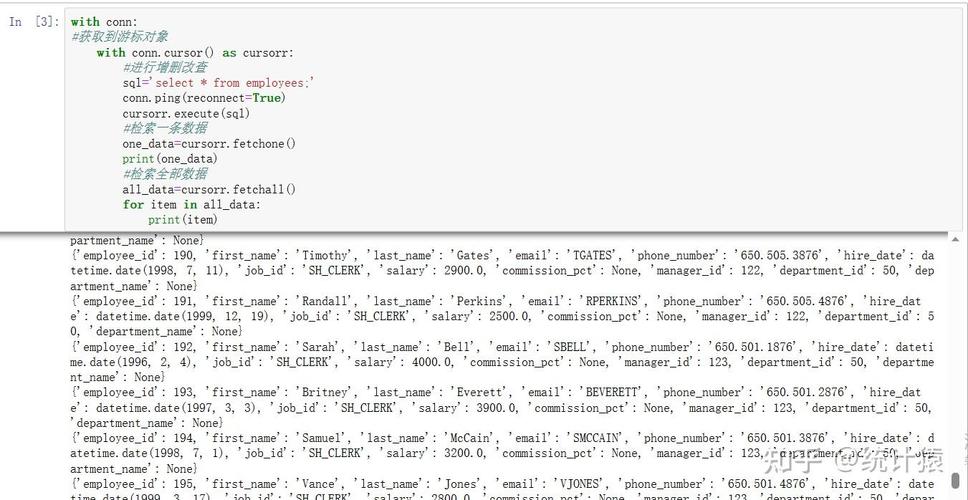
mysql-connector-pythonorPyMySQL) to connect to the MySQL database. - Python sends a query:
SELECT * FROM users WHERE id = 123; - MySQL receives the query, finds the matching row in the
userstable, and returns the data (e.g., name, email, bio). - The Python application takes this data, formats it into an HTML template (e.g., "Welcome, [Name]!"), and generates a complete HTML page.
- The Python application sends this final HTML page back to Apache.
- Apache receives the HTML and sends it back to the user's browser, which then displays the page.
Step-by-Step Guide to Setting Up a Local Environment
This is the most common way to develop locally. We'll use Docker, which is the modern, easiest, and most reliable way to set up this stack without conflicting with your main OS.
Prerequisites
- Python 3 installed.
- Docker Desktop installed and running.
Step 1: Create the Project Structure
Create a new folder for your project. Inside it, create the following files and folders.
my_web_app/
├── app/
│   ├── __init__.py
│   ├── main.py         # Our Python application (the Chef)
│   ├── db_config.py    # Database connection details
│   └── templates/
│       └── index.html  # A simple HTML template
├── Dockerfile          # Instructions to build our Python app's image
├── docker-compose.yml  # The orchestrator for our entire stack (Apache, Python, MySQL)
└── requirements.txt    # Python libraries needed
Step 2: Write the Python Code
requirements.txt
This file lists the Python libraries we need.
Flask
mysql-connector-python
app/db_config.py
This file will store our database connection credentials.
# It's better to use environment variables in production
DB_HOST = 'db'          # This is the service name from docker-compose.yml
DB_USER = 'myuser'
DB_PASSWORD = 'mypassword'
DB_NAME = 'mydatabase'
app/main.py
This is the core of our Flask application.
from flask import Flask, render_template
import mysql.connector
from db_config import DB_HOST, DB_USER, DB_PASSWORD, DB_NAME
app = Flask(__name__)
def get_db_connection():
    """Establishes a connection to the MySQL database."""
    try:
        conn = mysql.connector.connect(
            host=DB_HOST,
            user=DB_USER,
            password=DB_PASSWORD,
            database=DB_NAME
        )
        return conn
    except mysql.connector.Error as err:
        print(f"Error connecting to database: {err}")
        return None
@app.route('/')
def index():
    """Fetches data from MySQL and renders it in an HTML template."""
    conn = get_db_connection()
    if conn is None:
        return "Database connection failed!", 500
    cursor = conn.cursor(dictionary=True)
    cursor.execute("SELECT id, name, email FROM users LIMIT 5;")
    users = cursor.fetchall()
    cursor.close()
    conn.close()
    return render_template('index.html', users=users)
if __name__ == '__main__':
    # This is for development only. In production, Apache will run the app.
    app.run(host='0.0.0.0', port=5000, debug=True)
app/templates/index.html
This is the template our Flask app will render.
<!DOCTYPE html>
<html lang="en">
<head>
    <meta charset="UTF-8">Python, MySQL, Apache Demo</title>
    <style>
        body { font-family: sans-serif; margin: 2em; }
        table { border-collapse: collapse; width: 100%; }
        th, td { border: 1px solid #dddddd; text-align: left; padding: 8px; }
        th { background-color: #f2f2f2; }
    </style>
</head>
<body>
    <h1>User List from MySQL</h1>
    <p>This page is dynamically generated by Python, fetching data from a MySQL database.</p>
    <table>
        <thead>
            <tr>
                <th>ID</th>
                <th>Name</th>
                <th>Email</th>
            </tr>
        </thead>
        <tbody>
            {% for user in users %}
            <tr>
                <td>{{ user.id }}</td>
                <td>{{ user.name }}</td>
                <td>{{ user.email }}</td>
            </tr>
            {% else %}
            <tr>
                <td colspan="3">No users found.</td>
            </tr>
            {% endfor %}
        </tbody>
    </table>
</body>
</html>
Step 3: Configure Docker (docker-compose.yml)
This is the magic file that defines and connects our services.
version: '3.8'
services:
  # The Python/Flask Application
  web:
    build: .
    ports:
      - "5000:5000" # Expose Flask's dev server on port 5000
    volumes:
      - ./app:/app # Mount the code for live-reloading
    environment:
      - DB_HOST=db
    depends_on:
      - db # Wait for the database to be ready
  # The MySQL Database
  db:
    image: mysql:8.0
    environment:
      MYSQL_ROOT_PASSWORD: rootpassword
      MYSQL_DATABASE: mydatabase
      MYSQL_USER: myuser
      MYSQL_PASSWORD: myassword
    volumes:
      - mysql_data:/var/lib/mysql # Persist database data
    ports:
      - "3306:3306" # Optional: expose MySQL port for debugging tools
  # The Apache Web Server (using mod_wsgi)
  apache:
    image: httpd:2.4
    ports:
      - "8080:80" # Access the app via http://localhost:8080
    volumes:
      - ./apache-config.conf:/usr/local/apache2/conf/httpd.conf # Mount Apache config
      - ./app:/var/www/html/app # Mount the Python app code
    depends_on:
      - web # Wait for the Python app to be ready
volumes:
  mysql_data:
Step 4: Configure Apache (apache-config.conf)
This tells Apache how to talk to our Python application using mod_wsgi.
# Basic Apache settings
ServerRoot "/usr/local/apache2"
Listen 80
ServerAdmin admin@example.com
ServerName localhost
# Mount the Python app at the root URL
WSGIDaemonProcess myapp python-home=/app/venv python-path=/app
WSGIScriptAlias / /app/app.wsgi
<Directory /app>
    Require all granted
</Directory>
Note: For a production setup, mod_wsgi is more complex. For this simple demo, we'll use a different approach in the Dockerfile to make it easier.
Step 5: Create the Dockerfile and app.wsgi
Dockerfile
# Use an official Python runtime as a parent image
FROM python:3.9-slim
# Set the working directory in the container
WORKDIR /app
# Copy the dependencies file and install them
COPY requirements.txt .
RUN pip install --no-cache-dir -r requirements.txt
# Copy the rest of the application code into the container
COPY . .
# The command to run the app
# In a real setup, you'd use mod_wsgi, but for simplicity, we'll use gunicorn
CMD ["gunicorn", "--bind", "0.0.0.0:5000", "app.main:app"]
app/app.wsgi
This file is required by mod_wsgi to load the Flask application.
from app.main import app as application
# For production, you might add:
# application.secret_key = 'some_secret_key'
Step 6: Seed the Database
Before running, let's add some data. Create a file init.sql:
USE mydatabase;
INSERT INTO users (name, email) VALUES
('Alice', 'alice@example.com'),
('Bob', 'bob@example.com'),
('Charlie', 'charlie@example.com');
You would typically mount this file in your docker-compose.yml to be executed by the MySQL container on startup.
Step 7: Run Everything!
- Open your terminal in the
my_web_appdirectory. - Run the following command:
docker-compose up --build
- Docker will download the necessary images, build your Python app, and start all the services.
- Open your web browser and navigate to
http://localhost:8080.
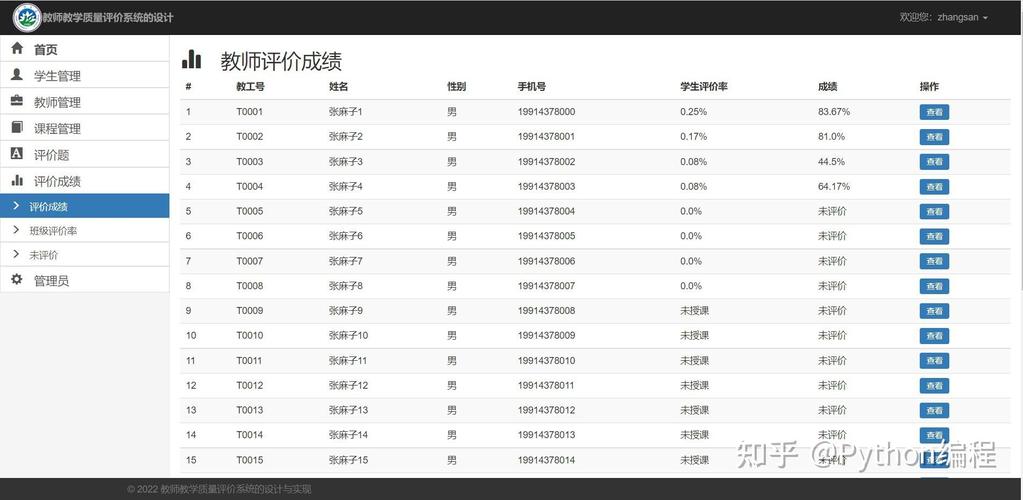
You should see a page with a table listing the users you inserted into the MySQL database, all served by Python running behind an Apache web server!
Modern Alternatives & Considerations
While this stack is classic, the modern landscape has evolved:
- Web Servers: While Apache is great, Nginx is often preferred today for its high performance, especially as a reverse proxy. A common setup is Nginx (for serving static files and proxying requests) + Gunicorn/uWSGI (to run the Python app).
- Python Frameworks: Flask (as used above) is lightweight and great for small apps. Django is a more "batteries-included" framework that includes its own admin panel, ORM, and more.
- Database Interaction: Instead of writing raw SQL, many developers use an ORM (Object-Relational Mapper) like SQLAlchemy or Django's built-in ORM. This allows you to interact with your database using Python objects, which can be safer and more efficient.
- Deployment: For production, services like Docker Swarm or Kubernetes are used to orchestrate this stack across multiple servers for scalability and reliability. Platforms like Heroku, AWS Elastic Beanstalk, or Google App Engine also make deploying this combination much easier.