Of course! Here is a comprehensive guide to using the Java client for FastDFS, covering the most popular client library, configuration, and practical code examples.

Overview
FastDFS is a lightweight, high-performance open-source distributed file system. To interact with it from a Java application, you need a Java client library. The most widely used and maintained library is com.github.happyfish0 (formerly org.csource).
This guide will walk you through:
- Prerequisites: What you need to have running.
- Maven Dependency: How to add the client library to your project.
- Configuration: Setting up the
tracker.conffile to connect to your FastDFS cluster. - Core Operations: Uploading, downloading, deleting, and getting file info.
- Advanced Topics: Group management, custom file names, and error handling.
Prerequisites
Before you start, you need a running FastDFS environment. This typically consists of:
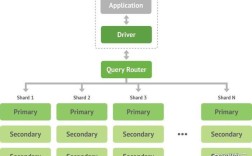
- One or more Tracker Servers: For load balancing and scheduling.
- One or more Storage Servers: For actually storing the files.
For this guide, we assume you have at least one Tracker server running (e.g., at 168.1.10:22122).

Maven Dependency
Add the fastdfs-client-java library to your pom.xml file. It's recommended to use a recent version.
<dependency>
    <groupId>com.github.happyfish0</groupId>
    <artifactId>fastdfs-client-java</artifactId>
    <version>1.27.1</version> <!-- Check for the latest version on Maven Central -->
</dependency>
Configuration
The Java client needs to know how to connect to your FastDFS Tracker servers. This is done via a configuration file.
Step 3.1: Create tracker.conf
Create a file named tracker.conf in your project's classpath (e.g., in src/main/resources).
tracker.conf

# The IP address of the tracker server (or servers)
# For multiple trackers, separate them with a space
tracker_server=192.168.1.10:22122
# Optional: Add another tracker for high availability
# tracker_server=192.168.1.11:22122
# Connection pool settings (optional but recommended)
# Maximum number of connections in the pool
connection_pool_max_idle_time=3600
connection_pool_max_pool_size=200
connection_pool_min_pool_size=10
Step 3.2: Load the Configuration in Java
You need to load this configuration file when your application starts. It's best to do this once during application initialization.
import org.csource.fastdfs.ClientGlobal;
import org.csource.common.MyException;
import java.io.IOException;
public class FastDFSConfig {
    public static void init() {
        try {
            // The path to the configuration file
            String filePath = FastDFSConfig.class.getClassLoader().getResource("tracker.conf").getPath();
            // Initialize the client
            ClientGlobal.init(filePath);
            System.out.println("FastDFS client initialized successfully.");
        } catch (IOException | MyException e) {
            System.err.println("Failed to initialize FastDFS client: " + e.getMessage());
            e.printStackTrace();
            // In a real application, you might want to handle this more gracefully
            // (e.g., by throwing a runtime exception to stop the app)
        }
    }
}
You would call FastDFSConfig.init() when your application starts up (e.g., in a @PostConstruct method, a servlet context listener, or a Spring @Configuration class).
Core Operations
Once initialized, you can perform file operations.
The TrackerClient and StorageClient
The key classes are:
TrackerClient: Used to connect to the Tracker server.StorageClient: Used to perform actual file operations on the Storage server. TheTrackerClienthelps you get aStorageClientinstance.
1 Upload a File
Uploading is a two-step process: first upload the file content, then optionally set metadata.
import org.csource.fastdfs.*;
import java.io.File;
import java.io.FileInputStream;
import java.io.IOException;
import java.nio.charset.StandardCharsets;
public class FastDFSUploadExample {
    public static void main(String[] args) {
        // Ensure the client is initialized first
        FastDFSConfig.init();
        // The file you want to upload
        String localFile = "path/to/your/local/file.txt";
        try (FileInputStream fis = new FileInputStream(new File(localFile))) {
            // 1. Create a TrackerClient
            TrackerClient tracker = new TrackerClient();
            TrackerServer trackerServer = tracker.getConnection();
            if (trackerServer == null) {
                throw new IOException("Could not get connection from tracker server");
            }
            // 2. Get a StorageClient from the TrackerClient
            StorageClient storageClient = tracker.getStorageClient(trackerServer);
            // 3. Upload the file
            // upload_file(File file, String ext_name, NameValuePair[] meta_list)
            // ext_name: the file extension (e.g., "jpg", "txt"). Use null to auto-detect.
            // meta_list: file metadata (e.g., author, title). Can be null.
            String[] fileIds = storageClient.upload_file(fis, "txt", null);
            if (fileIds == null) {
                System.err.println("File upload failed.");
                return;
            }
            // 4. The result is an array: [group_name, remote_file_id]
            String groupName = fileIds[0];
            String remoteFileName = fileIds[1];
            System.out.println("Upload successful!");
            System.out.println("Group Name: " + groupName);
            System.out.println("Remote File Name: " + remoteFileName);
            System.out.println("Full URL: http://" + "your-storage-server-ip" + "/" + groupName + "/" + remoteFileName);
            // --- Example with Metadata ---
            NameValuePair[] metaList = new NameValuePair[] {
                new NameValuePair("author", "John Doe"),
                new NameValuePair("description", "A sample text file.")
            };
            String[] fileIdsWithMeta = storageClient.upload_file(new File(localFile), "txt", metaList);
            System.out.println("\nUpload with metadata successful: " + fileIdsWithMeta[1]);
        } catch (IOException | MyException e) {
            e.printStackTrace();
        }
    }
}
2 Download a File
To download a file, you need the groupName and remoteFileName from the upload result.
import org.csource.fastdfs.*;
import java.io.File;
import java.io.FileOutputStream;
import java.io.IOException;
public class FastDFSDownloadExample {
    public static void main(String[] args) {
        FastDFSConfig.init();
        // Information of the file to download (from a previous upload)
        String groupName = "group1"; // Or whatever your group is
        String remoteFileName = "M00/00/00/..."; // The remote file ID
        // Where to save the downloaded file
        String localSavePath = "path/to/save/downloaded_file.txt";
        try (FileOutputStream fos = new FileOutputStream(new File(localSavePath))) {
            TrackerClient tracker = new TrackerClient();
            TrackerServer trackerServer = tracker.getConnection();
            StorageClient storageClient = tracker.getStorageClient(trackerServer);
            // Download the file
            byte[] fileContent = storageClient.download_file(groupName, remoteFileName);
            if (fileContent == null) {
                System.err.println("File download failed. File not found or error occurred.");
                return;
            }
            // Write the content to a local file
            fos.write(fileContent);
            System.out.println("File downloaded successfully to: " + localSavePath);
        } catch (IOException | MyException e) {
            e.printStackTrace();
        }
    }
}
3 Delete a File
Deleting is straightforward and requires the same groupName and remoteFileName.
import org.csource.fastdfs.*;
import java.io.IOException;
public class FastDFSDelExample {
    public static void main(String[] args) {
        FastDFSConfig.init();
        String groupName = "group1";
        String remoteFileName = "M00/00/00/...";
        try {
            TrackerClient tracker = new TrackerClient();
            TrackerServer trackerServer = tracker.getConnection();
            StorageClient storageClient = tracker.getStorageClient(trackerServer);
            // Delete the file
            int result = storageClient.delete_file(groupName, remoteFileName);
            if (result == 0) {
                System.out.println("File deleted successfully.");
            } else {
                System.err.println("File deletion failed. Error code: " + result);
            }
        } catch (IOException | MyException e) {
            e.printStackTrace();
        }
    }
}
4 Get File Information (Metadata)
You can retrieve the metadata associated with a file.
import org.csource.fastdfs.*;
import java.io.IOException;
public class FastDFSGetMetaExample {
    public static void main(String[] args) {
        FastDFSConfig.init();
        String groupName = "group1";
        String remoteFileName = "M00/00/00/...";
        try {
Tracker