Of course! This is a very common and essential task for any Java developer using Eclipse. Let's break down the entire process, from creating a runnable JAR to understanding common issues and solutions.
We'll cover three main scenarios:
- Creating a simple runnable JAR (for basic programs).
- Creating a runnable JAR with external libraries (the most common scenario).
- Exporting a non-runnable JAR (for library distribution).
Scenario 1: Creating a Simple Runnable JAR (No External Libraries)
This is for when your project only uses classes from the Java Standard Library (e.g., java.util.Scanner, System.out.println).
Step-by-Step Guide:
-
Write Your Code: Create a Java project in Eclipse with a class that has a
mainmethod.// src/com/example/MyApp.java package com.example; public class MyApp { public static void main(String[] args) { System.out.println("Hello from a JAR file!"); } } -
Export the JAR:
- Right-click on your project in the Project Explorer view.
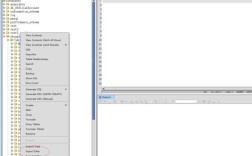
- Go to Export....
- In the dialog, expand Java and select Runnable JAR file. Click Next.
-
Configure the Export Settings:
- Launch configuration: This dropdown shows all the
mainmethods it found in your project. Select the one you want to run (e.g.,MyApp). - Export destination: Click Browse... and choose where to save your JAR file (e.g.,
C:\temp\MyApp.jar). - Library handling: For a simple project, this will likely say "Extract required libraries into generated JAR". This is fine.
- Launch configuration: This dropdown shows all the
-
Finish and Run:
- Click Finish.
- Eclipse will create the JAR file. You can now run it from your terminal or command prompt:
java -jar C:\temp\MyApp.jar
(On macOS/Linux, you might need
chmod +x MyApp.jarfirst, then just./MyApp.jar).
Scenario 2: Creating a Runnable JAR with External Libraries (Most Common)
This is the crucial part. If your project uses libraries like Apache Commons, Gson, Log4j, or Hibernate, you must include them in the JAR. Eclipse provides two main ways to do this.
Method A: Using "Extract required libraries into generated JAR" (The Easy Way)
This method bundles all your library files (.jar) inside your final JAR file. It's simple but can be less efficient.
-
Add Libraries to Your Project:
- Right-click your project -> Build Path -> Configure Build Path....
- Go to the Libraries tab.
- Click Add External JARs... and select all the
.jarfiles your project depends on. - Click Apply and Close.
-
Export the JAR:
- Follow the same steps as in Scenario 1: Right-click project -> Export... -> Runnable JAR file.
- In the export dialog:
- Select your launch configuration.
- Choose the export destination.
- Crucially, in the "Library handling" dropdown, select "Extract required libraries into generated JAR".
-
Pros and Cons:
- Pro: Very easy. The resulting JAR is a single file, which is simple to distribute.
- Con: The final JAR file will be larger. The application might be slightly slower to start because it has to extract the libraries on the first run (in some JVM versions).
Method B: Using "Package required libraries into generated JAR" (The Recommended Way)
This method packages your code and the library code into a single JAR, but without extracting the libraries first. This is generally the preferred method.
-
Add Libraries to Your Project:
Same as step 1 in Method A. Make sure all your libraries are on the build path.
-
Export the JAR:
- Follow the same steps as before.
- In the export dialog, change the "Library handling" dropdown to "Package required libraries into generated JAR".
-
Pros and Cons:
- Pro: The final JAR is smaller and often starts faster.
- Con: Can sometimes be tricky. If you get a
NoClassDefFoundError, it usually means the manifest file isn't set up correctly to find the classes within the packaged libraries.
Scenario 3: Exporting a Non-Runnable Library JAR
Sometimes you don't want a runnable JAR; you want to create a library that other projects can use. In this case, you export a "JAR file".
-
Export the JAR:
- Right-click your project -> Export....
- Expand Java and select JAR file. Click Next.
-
Configure the Export Settings:
- Select the resources to export: Choose the folders you want to package. Typically, this is your
srcfolder and any other resources. Do not include.classpath,.project, orbinfolders. - Export destination: Choose a location for your library JAR.
- Options: Ensure "Create source folder root" and "Create separate folder for structure" are checked if you want to include source code.
- Select the resources to export: Choose the folders you want to package. Typically, this is your
-
Finish:
- Click Finish.
- The resulting
your-library.jarcan now be added to another project's build path.
Common Problems and Solutions
Problem: NoClassDefFoundError
This is the most famous error. It means the Java Virtual Machine found the class definition while compiling your code but could not find it at runtime.
Causes & Solutions:
-
Missing Libraries in the JAR:
- Cause: You exported a runnable JAR but forgot to include the external libraries.
- Solution: Go back to the export wizard and ensure you selected either "Extract" or "Package" for the required libraries.
-
Incorrect Manifest File (Class-Path):
- Cause: You packaged the libraries separately and the
MANIFEST.MFfile inside your JAR doesn't know where to find them. - Solution: When exporting, you can specify a custom manifest file.
- In the export dialog, click Options.
- Check "Use existing manifest from workspace" and select your project's
.jarmanifest file (usually found underMETA-INF/MANIFEST.MF). - The
Class-Pathentry in this file must list the relative or absolute paths to your external library JARs. This is brittle and not recommended for distribution.
- Cause: You packaged the libraries separately and the
-
Using an IDE-Specific Build Path:
- Cause: Your code references a class that only exists in Eclipse's internal environment (e.g., a class from a JUnit test runner that isn't actually needed at runtime).
- Solution: Clean your project thoroughly (Project -> Clean...) and check your code for any IDE-specific dependencies.
Problem: Could not find or load main class
This error means the JVM couldn't locate the class you specified with -jar.
Causes & Solutions:
-
Incorrect Package Declaration:
- Cause: Your class
public class MyClassis in a packagecom.example, but you are trying to runjava -jar MyApp.jar com.example.MyClass. - Solution: When creating the Runnable JAR, the Launch configuration already knows the correct main class. You don't need to specify it on the command line. Just run
java -jar MyApp.jar. If you must run it from the command line without-jar, you'd need to set theClass-Pathin the manifest correctly and runjava -cp MyApp.jar com.example.MyClass.
- Cause: Your class
-
Corrupted JAR File:
- Cause: The export process failed, or the JAR file is incomplete.
- Solution: Re-export the JAR from Eclipse. You can also try opening the JAR file with a zip tool (like 7-Zip or WinRAR) to see if your class files are actually inside.
Best Practices Summary
- Use Build Tools (Maven or Gradle): For any non-trivial project, stop using Eclipse's export feature. Use a build tool like Maven or Gradle. They handle dependencies, building, and packaging automatically and correctly. This is the industry standard and will save you countless headaches.
- For Simple Projects: Use Scenario 2, Method B ("Package required libraries"). It's the best balance of simplicity and performance.
- For Distribution: A single, self-contained JAR is easiest for users. If you use Method B ("Package"), ensure it works on a clean machine without your IDE.
- Always Test: After creating a JAR, copy it to a completely different folder (or even another machine) and try to run it. This tests if you've correctly included everything.