Of course! Let's dive deep into Android, Java, and JNI. This is a powerful but complex topic, so we'll break it down from the fundamentals to a practical, step-by-step example.
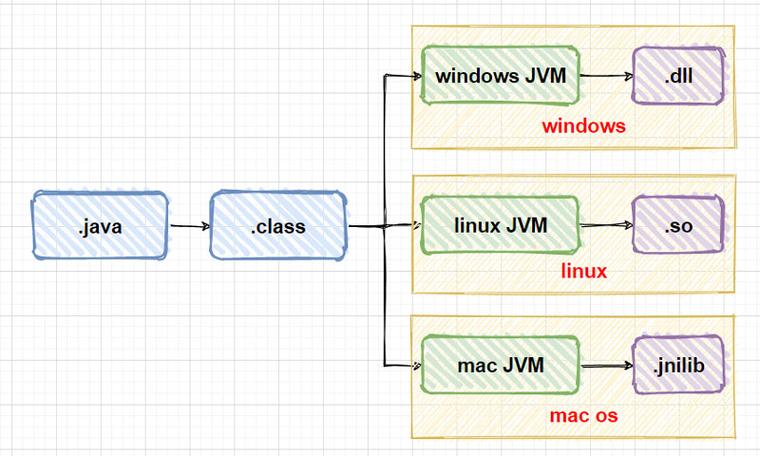
Table of Contents
- What is JNI? (The "Why")
- When to Use JNI (and When NOT To)
- The Core Concept: The Bridge
- Step-by-Step JNI Implementation
- Step 1: The Java Side
- Step 2: Generate the Header File
- Step 3: Write the C/C++ Native Code
- Step 4: Create the CMake Build Script
- Step 5: Tell Android Studio About Your Native Code
- Step 6: Load and Use the Native Library
- Common JNI Tasks & Data Type Mapping
- Advanced Topics & Best Practices
- Alternatives to JNI
What is JNI? (The "Why")
JNI stands for Java Native Interface. It is a framework that allows Java code running in the Java Virtual Machine (JVM) to interact with applications and libraries written in other languages, such as C, C++, and Assembly.
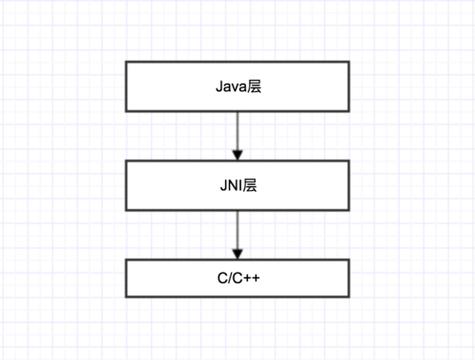
Think of it as a bridge or a translator. On one side of the bridge is your Java/Kotlin code, and on the other side is your native (C/C++) code. JNI enables them to call each other and exchange data.
The Key Components:
- Java Code: Your Android app's logic, UI, etc.
- Native Code (C/C++): Code compiled to machine code that runs directly on the CPU.
- JNI Library: A set of functions and conventions that both sides use to communicate. The JVM knows how to call JNI functions, and your C/C++ code is written to implement those functions.
When to Use JNI (and When NOT To)
JNI is a powerful tool, but it's not a silver bullet. Misusing it can lead to complex, slow, and hard-to-maintain code.
✅ Good Use Cases:
- Reusing Existing Native Libraries: You have a high-performance, legacy C/C++ library (e.g., a physics engine, a video codec, an encryption library) that you want to use in your Android app without rewriting it in Java/Kotlin.
- Performance-Critical Code: For specific, CPU-intensive tasks where C/C++ can offer significant speedups over the JVM (e.g., complex mathematical calculations, audio/video processing).
- Accessing Platform-Specific APIs: When you need to interact with hardware or OS features that are not exposed through the Android SDK (though the NDK is increasingly making this less necessary).
- Low-Level Hardware Interaction: For direct hardware access, which is typically done in C/C++.
❌ Avoid When Possible:
- Simple Logic: Don't use JNI just to call a simple
add(int a, int b)function. The overhead of the JNI call will likely make it slower than the Java equivalent. - UI Operations: NEVER create or manipulate Android UI elements (like
Viewobjects) from a native thread. UI must be updated on the main UI thread usingrunOnUiThread(). This is a common source of crashes. - Memory Management: You are now responsible for managing memory in two worlds (the JVM's garbage collector and C/C++'s manual memory management). This is complex and can lead to memory leaks or crashes if not handled carefully.
- Development Complexity: JNI code is harder to write, debug, and maintain. It breaks the "write once, run anywhere" promise of Java.
The Core Concept: The Bridge
The communication works in two directions:
Java → C/C++ (Calling Native Code)
- You declare a native method in your Java class using the
nativekeyword. - You compile your Java code, and the
javahtool (or modernjavac -h) generates a C/C++ header file (.h). This header file defines the function signature your C/C++ code must implement. - You write the C/C++ implementation for that function.
- You package your C/C++ code into a shared library (
.sofile). - Your Java code uses
System.loadLibrary("mylibrary")to load the library. After loading, the JVM can link your Java method call to the corresponding C/C++ function.
C/C++ → Java (Calling Java Code)
- From your native C/C++ function, you can call back into the JVM.
- You use JNI functions (like
FindClass,GetMethodID,CallVoidMethod) to get a reference to a Java class, a method, and then invoke that method. - This allows you to pass data back to Java or call Java methods to perform actions (like updating the UI).
Step-by-Step JNI Implementation
Let's create a simple example: a Java method that calls a C++ function to add two integers and return the result.
Step 1: The Java Side
Create a Java class with a native method. This method has no implementation in Java; its implementation will be in C++.
app/src/main/java/com/example/jnidemo/MyJniClass.java
package com.example.jnidemo;
public class MyJniClass {
    // Load the native library when the class is loaded.
    // The library name "myjni-lib" corresponds to the "libmyjni-lib.so" file.
    static {
        System.loadLibrary("myjni-lib");
    }
    // Declare a native method. The implementation is in C++.
    // Note the native method signature. We'll map types later.
    public native int add(int a, int b);
    // Another example: passing a String from Java to C++
    public native String sayHello(String name);
}
Step 2: Generate the Header File
You need to tell the C++ compiler what function signature to implement. The easiest way is to use Android Studio's built-in tools.
- Make sure your Java file is saved.
- Click on the
addmethod inMyJniClass.java. - Press
Alt + Enter(orOption + Enteron Mac). - Select
Add JNI stubs.
Android Studio will automatically create the C++ source and header files in app/src/main/cpp/:
myjni-lib.cpp(the C++ implementation file)myjni-lib.h(the C++ header file)
The generated myjni-lib.h will look something like this. You should not edit this file by hand.
app/src/main/cpp/myjni-lib.h
#ifndef MYJNILIB_H
#define MYJNILIB_H
#include <jni.h>
#include <string>
#ifdef __cplusplus
extern "C" {
#endif
/*
 * Class:     com_example_jnidemo_MyJniClass
 * Method:    add
 * Signature: (II)I
 */
JNIEXPORT jint JNICALL Java_com_example_jnidemo_MyJniClass_add(JNIEnv *, jobject, jint, jint);
/*
 * Class:     com_example_jnidemo_MyJniClass
 * Method:    sayHello
 * Signature: (Ljava/lang/String;)Ljava/lang/String;
 */
JNIEXPORT jstring JNICALL Java_com_example_jnidemo_MyJniClass_sayHello(JNIEnv *, jobject, jstring);
#ifdef __cplusplus
}
#endif
#endif // MYJNILIB_H
Key points in the header:
JNIEXPORT,JNICALL: Macros that ensure the function is exported correctly.Java_com_example_jnidemo_MyJniClass_add: This is the mangled function name. It's derived fromClassPackagePathClassName_MethodName. The JVM uses this name to find the function.JNIEnv *: A pointer to the JNI environment. It's your gateway to all JNI functions (e.g., creating objects, calling methods).jobject: A reference to the Java object instance this method belongs to (equivalent tothisin Java). Forstaticmethods, this would bejobject.(II)I: This is the method signature. It describes the argument types and the return type.- starts the argument list.
Iis a JNI type forint.- ends the argument list.
- The final
Iis the return type (int).
Step 3: Write the C/C++ Native Code
Now, implement the functions defined in the header file.
app/src/main/cpp/myjni-lib.cpp
#include "myjni-lib.h"
// Implementation of the add method
JNIEXPORT jint JNICALL Java_com_example_jnidemo_MyJniClass_add(JNIEnv *env, jobject thiz, jint a, jint b) {
    // Simply add the two integers and return the result
    return a + b;
}
// Implementation of the sayHello method
JNIEXPORT jstring JNICALL Java_com_example_jnidemo_MyJniClass_sayHello(JNIEnv *env, jobject thiz, jstring name) {
    // 1. Get the C-style string from the jstring
    const char *c_str = env->GetStringUTFChars(name, nullptr);
    if (c_str == nullptr) {
        // OutOfMemoryError thrown
        return nullptr;
    }
    // 2. Create a new C++ string
    std::string result = "Hello from C++, ";
    result += c_str;
    // 3. Release the memory for the C-style string
    env->ReleaseStringUTFChars(name, c_str);
    // 4. Create a new jstring from the C++ string and return it
    return env->NewStringUTF(result.c_str());
}
Step 4: Create the CMake Build Script
CMake is the standard build system for native code in Android Studio. You need to tell it how to compile your C++ files into a shared library.
Create a file named CMakeLists.txt in the app directory (same level as build.gradle).
app/CMakeLists.txt
# Sets the minimum version of CMake required.
cmake_minimum_required(VERSION 3.18.1)
# Define the project name.
project("myjni-lib")
# Add your native library. The name here MUST match the name in System.loadLibrary.
add_library(
        myjni-lib # Library name
        SHARED    # Type: Shared Library (.so)
        # List of source files to compile
        src/main/cpp/myjni-lib.cpp
)
# Find and link the JNI library.
# This is essential for your code to access JNI functions like JNIEnv.
find_library(
        log-lib
        log)
# Link your library against the log library (optional, for logging).
target_link_libraries(
        myjni-lib
        ${log-lib})
Step 5: Tell Android Studio About Your Native Code
Finally, update your app-level build.gradle file to point to your CMake configuration.
app/build.gradle
android {
    // ... other configurations
    defaultConfig {
        // ... other settings
        externalNativeBuild {
            cmake {
                // Pass arguments to CMake.
                // For example, to enable C++17: arguments "-DANDROID_STL=c++_17"
                cppFlags ""
            }
        }
    }
    // This is the crucial part
    externalNativeBuild {
        cmake {
            path "src/main/cpp/CMakeLists.txt" // Path to your CMakeLists.txt
            version "3.18.1"                   // Use a CMake version compatible with your AGP
        }
    }
}
// ... other configurations like dependencies
After saving this file, Android Studio will automatically sync your project and build the native library. You can see the generated .so files in app/build/intermediates/cmake/debug/lib/.
Step 6: Load and Use the Native Library
Now you can use your MyJniClass in your Activity or Fragment.
MainActivity.java
package com.example.jnidemo;
import androidx.appcompat.app.AppCompatActivity;
import android.os.Bundle;
import android.widget.TextView;
public class MainActivity extends AppCompatActivity {
    @Override
    protected void onCreate(Bundle savedInstanceState) {
        super.onCreate(savedInstanceState);
        setContentView(R.layout.activity_main);
        TextView tv = findViewById(R.id.sample_text);
        // Create an instance of our JNI class
        MyJniClass jniHelper = new MyJniClass();
        // Call the native add method
        int sum = jniHelper.add(10, 25);
        String message = "10 + 25 = " + sum;
        // Call the native sayHello method
        String greeting = jniHelper.sayHello("Android Developer");
        message += "\n\n" + greeting;
        tv.setText(message);
    }
}
Common JNI Tasks & Data Type Mapping
This is one of the trickiest parts. You constantly convert between Java types and native types.
| Java Type | JNI Type | Description |
|---|---|---|
byte |
jbyte |
8-bit signed integer |
short |
jshort |
16-bit signed integer |
int |
jint |
32-bit signed integer |
long |
jlong |
64-bit signed integer |
float |
jfloat |
32-bit floating-point |
double |
jdouble |
64-bit floating-point |
char |
jchar |
16-bit Unicode character |
boolean |
jboolean |
8-bit (true=1, false=0) |
Object |
jobject |
Any non-primitive object |
String |
jstring |
A Java String object |
Class |
jclass |
A Java Class object |
Throwable |
jthrowable |
A Java Throwable object |
Object[] |
jobjectArray |
Any object array |
byte[] |
jbyteArray |
Array of bytes |
int[] |
jintArray |
Array of ints |
| ... | ... | ... |
Key JNI Functions for Data Conversion:
- Strings:
GetStringUTFChars(): Convertsjstringtoconst char*.NewStringUTF(): Convertsconst char*tojstring.- Remember to
ReleaseStringUTFChars()when you're done!
- Arrays:
GetIntArrayElements(): Gets a pointer to thejintArray's elements.ReleaseIntArrayElements(): Releases the array.GetIntArrayLength(): Gets the array's length.
Advanced Topics & Best Practices
- Threading: By default, native code runs on the same thread that called it. If you call a long-running native function from the UI thread, your app will freeze. Offload heavy native work to a background thread using
java.lang.Threadorjava.util.concurrent.Executor. - Exception Handling: JNI does not automatically propagate Java exceptions to your native code. If a Java method called from native code throws an exception, the JNI function will return an error code or
NULL. You must explicitly check for exceptions usingExceptionCheck()and handle them withExceptionDescribe()andExceptionClear(). - Memory Management: Be careful with
NewGlobalRefandDeleteGlobalRef. When you get a reference to a Java object in native code (e.g., viaNewObject), you must manage its lifecycle. Global references prevent the JVM's garbage collector from reclaiming the object, so you must explicitly delete them when you're done to avoid memory leaks. - JNI_OnLoad: When you load a library, you can provide a
JNI_OnLoadfunction. This function is called by the JVM when the library is first loaded. It's used to perform one-time setup, like registering your native methods with the JVM, which can be faster than the default lookup mechanism.
Alternatives to JNI
While JNI is the standard, it's not the only way to use native code in Android.
- Android NDK (Native Development Kit): This is not an alternative to JNI, but rather the toolkit that provides the compiler, debugger, and build system (like CMake) for creating the native libraries that JNI uses. You cannot use the NDK without using JNI under the hood.
- Kotlin/Native: This is a different approach from JetBrains. It compiles Kotlin code (including its interop with C/Objective-C) directly to a native binary, without a JVM. It avoids the overhead of JNI but is a different ecosystem and may not be suitable for all projects.
- P/Invoke for .NET (MAUI): If you are using .NET Multi-platform App UI (MAUI), you use Platform Invocation Services (P/Invoke) to call native libraries, which has a different (and often simpler) syntax than JNI.