Of course! Creating a runnable JAR file from a Java project in Eclipse is a fundamental skill. Here’s a comprehensive guide covering the different methods, their pros and cons, and troubleshooting tips.
What is a JAR File?
A JAR (Java Archive) file is a package format that combines many Java class files and associated metadata and resources (text, images, etc.) into a single file. This makes it easy to distribute and run your Java application.
Method 1: The Easy Way (Export Wizard)
This is the most straightforward method and works well for simple projects without external libraries.
Step-by-Step Guide:
-
Build Your Project: Make sure your project compiles without any errors. Go to
Project->Build Automatically(it should be checked). -
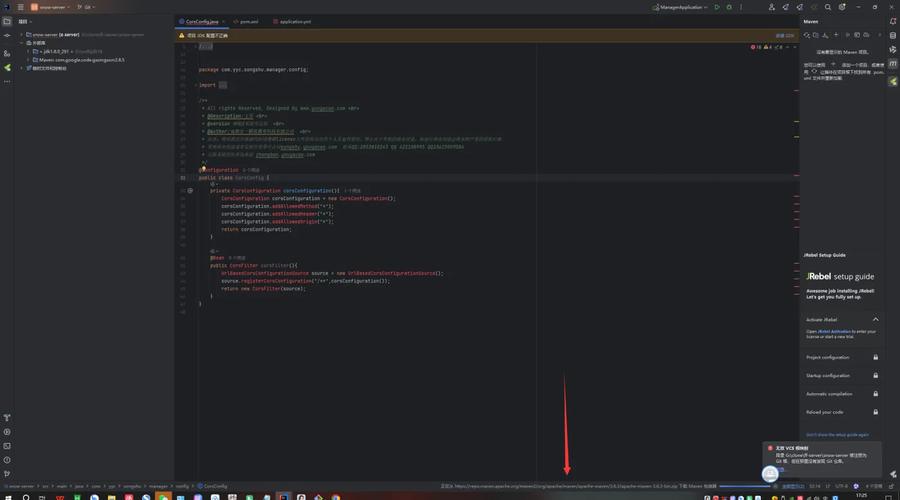
Open the Export Wizard:
 (图片来源网络,侵删)
- Right-click on your project in the "Project Explorer" view.
- Navigate to
Export...->Java->Runnable JAR file. - Click
Next.
-
Configure the Export Settings:
- Launch configuration: This is the most important part. It tells Eclipse which main class to run and what arguments to pass. If you have multiple
mainmethods, you'll see a dropdown menu here. Select the one that should be the entry point for your application. - Export destination: Click
Browse...and choose where you want to save the JAR file (e.g., on your Desktop). - Library handling: This is the second most critical part.
- Extract required libraries into generated JAR: This bundles all your library dependencies (like
.jarfiles fromlib/) directly into your main JAR. This creates a single, easy-to-distribute file. - Package required libraries into generated JAR: Similar to the above, but keeps the libraries in their own folders inside the main JAR. This is generally better as it preserves the library structure.
- Copy required libraries into a sub-folder next to the generated JAR: This creates your main JAR and a separate folder (e.g.,
lib/) containing all the dependency JARs. This is often the best choice for larger applications, as it allows you to update libraries without re-packaging the entire application.
- Extract required libraries into generated JAR: This bundles all your library dependencies (like
- Launch configuration: This is the most important part. It tells Eclipse which main class to run and what arguments to pass. If you have multiple
-
Finish: Click
Finish. Eclipse will build the JAR file in the location you specified.
How to Run the JAR:
Navigate to the folder where you saved the JAR file. You can run it in two ways:
- Double-click it: This might work, but often a console window will flash and disappear if there's an error. It's better to use the command line.
- Using the Command Line (Terminal/CMD):
java -jar YourJarFile.jar
Replace
YourJarFile.jarwith the actual name of your file. (图片来源网络,侵删)
Method 2: The Professional Way (Using a Build Tool - Maven or Gradle)
For any non-trivial project, using a build tool like Maven or Gradle is the industry standard. It manages dependencies, builds your project, and packages it reliably. Eclipse has excellent support for both.
Why use a build tool?
- Dependency Management: Automatically downloads and manages all your libraries (JAR files).
- Reproducible Builds: Ensures that anyone can build the exact same JAR file you did.
- Standardized Process: A
pom.xml(Maven) orbuild.gradle(Gradle) file defines the entire project lifecycle. - Advanced Packaging: Easily create fat JARs (all dependencies included), source JARs, Javadoc JARs, etc.
Example with Maven:
-
Install the Maven Eclipse Plugin: If you don't have it, go to
Help->Eclipse Marketplace..., search for "Maven for Eclipse" (or "M2Eclipse") and install it. -
Convert Project to Maven Project:
- Right-click your project ->
Configure->Convert to Maven Project. - This will create a
pom.xmlfile.
- Right-click your project ->
-
Configure
pom.xml:- Open the
pom.xmlfile. It will have an editor view. - Add the main class information inside the
<project>tag:<build> <plugins> <plugin> <groupId>org.apache.maven.plugins</groupId> <artifactId>maven-shade-plugin</artifactId> <version>3.2.4</version> <executions> <execution> <phase>package</phase> <goals> <goal>shade</goal> </goals> <configuration> <transformers> <transformer implementation="org.apache.maven.plugins.shade.resource.ManifestResourceTransformer"> <mainClass>com.yourpackage.YourMainClass</mainClass> </transformer> </transformers> </configuration> </execution> </executions> </plugin> </plugins> </build>- Replace
com.yourpackage.YourMainClasswith your actual main class's full name. - The Maven Shade Plugin is used here to create a "fat JAR" (also called an "uber JAR") that includes all dependencies.
- Replace
- Open the
-
Build the JAR:
- Right-click the
pom.xmlfile in the "Project Explorer". - Go to
Run As->Maven build.... - In the "Goals" field, type
clean package. - Click
Run.
- Right-click the
-
Find the JAR: The generated JAR file will be in the
target/directory of your project. It will be named something likeyour-artifact-id-1.0-SNAPSHOT.jar.
Common Problems and Solutions
Problem 1: Error: Could not find or load main class
This is the most common error. It means the JVM started, but couldn't locate the class you specified.
-
Cause 1 (Using Export Wizard): You chose the wrong "Launch configuration" in the export dialog.
- Solution: Go back to the export wizard (
Export->Runnable JAR) and ensure the correct main class is selected in the dropdown.
- Solution: Go back to the export wizard (
-
Cause 2 (Using Export Wizard): You used "Extract required libraries" and your
mainclass is in a package.- Solution: When you extract libraries, the package structure can get flattened. Ensure your manifest file (created by Eclipse) correctly points to the full package name of your main class. Using "Package required libraries" is often more reliable.
-
Cause 3 (Using Command Line): You are in the wrong directory.
- Solution: Run the command
java -jar YourJarFile.jarfrom the directory that contains the JAR file.
- Solution: Run the command
-
Cause 4 (Using Command Line): The classpath is wrong.
- Solution: If you used the "Copy libraries to sub-folder" option, you need to tell Java where to find them. The command should be:
java -cp "YourJarFile.jar;lib/*" com.yourpackage.YourMainClass
(Note the on Windows and on Linux/macOS. The is a wildcard for all JARs in the
libfolder. You must specify the full class name here).
- Solution: If you used the "Copy libraries to sub-folder" option, you need to tell Java where to find them. The command should be:
Problem 2: NoClassDefFoundError
This error means the JVM found your main class, but couldn't find one of its dependencies (another class it needs to run).
- Cause: The required library JAR is not in the classpath when you run the application.
- Solution:
- If you used the Export Wizard, ensure you selected "Package required libraries into generated JAR" or "Extract required libraries...". If you chose "Copy libraries to sub-folder," you must use the
-cpflag as shown above. - If you used a build tool, ensure you have added the dependency to your
pom.xmlorbuild.gradlefile and ran the build again.
- If you used the Export Wizard, ensure you selected "Package required libraries into generated JAR" or "Extract required libraries...". If you chose "Copy libraries to sub-folder," you must use the
Summary: Which Method to Use?
| Method | Best For | Pros | Cons |
|---|---|---|---|
| Export Wizard | Simple projects, quick tests, homework. | No setup, easy to use. | Brittle, poor dependency management, not reproducible. |
| Maven/Gradle | All projects, especially those with external libraries. | Robust, dependency management, reproducible, industry standard. | Requires learning a build tool, initial setup is more complex. |
Recommendation: For anything beyond a simple "Hello World," take the time to learn and use Maven or Gradle. It will save you countless headaches in the long run.