Of course! Converting HTML to PDF in Python is a common task, and there are several excellent libraries to choose from. The best one for you depends on your specific needs, such as whether you need CSS/JavaScript support, image rendering, or a simple, fast conversion.
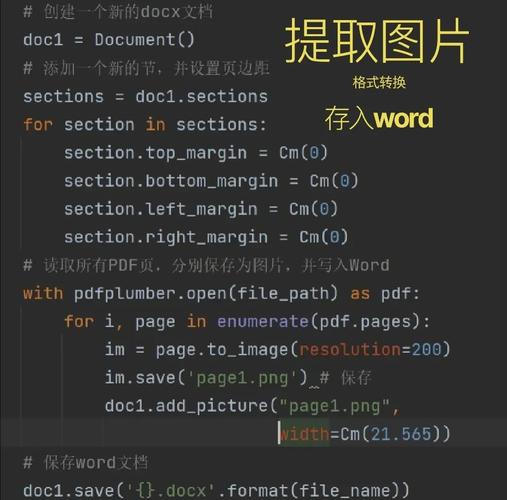
Here's a breakdown of the most popular methods, from the simplest to the most powerful.
Summary Table
| Library | Best For | Key Features | Installation | How it Works |
|---|---|---|---|---|
| WeasyPrint | High-fidelity PDFs from modern HTML/CSS. | Excellent CSS support, images, SVGs. | pip install weasyprint |
Renders HTML directly to PDF using a layout engine. |
| pdfkit | Simplicity & using an external tool. | Easy to use, great for simple pages. | pip install pdfkit |
A wrapper around the command-line tool wkhtmltopdf. |
| xhtml2pdf | Server-side PDF generation. | Python-based, no external dependencies (optional). | pip install xhtml2pdf |
Converts XHTML+CSS to PDF using ReportLab. |
| fpdf2 | Generating PDFs from scratch. | Not for HTML, but for creating custom layouts. | pip install fpdf2 |
A Pythonic way to build PDFs with code. |
WeasyPrint (Recommended for Most Cases)
WeasyPrint is a modern, pure-Python library that is fantastic for converting modern HTML and CSS into high-quality PDFs. It's often the best choice if you need your PDF to look exactly like your HTML page.
Pros:
- Excellent CSS support (Flexbox, Grid, etc.).
- Handles images, SVGs, and even fonts well.
- No external dependencies required (it bundles its own rendering engine).
- Actively maintained.
Cons:
- Can be slower than some alternatives for very large or complex documents.
Installation
pip install weasyprint
Example
This example creates a simple HTML string and converts it to a PDF file.
import weasyprint
# 1. Define your HTML content
# You can also read this from an external .html file
html_content = """
<!DOCTYPE html>
<html>
<head>
    <style>
        body { font-family: sans-serif; }
        h1 { color: #2c3e50; }
        .container { border: 1px solid #ccc; padding: 20px; max-width: 600px; margin: 20px auto; }
        .footer { text-align: center; margin-top: 40px; color: #7f8c8d; font-size: 0.8em; }
    </style>
</head>
<body>
    <div class="container">
        <h1>Hello, WeasyPrint!</h1>
        <p>This is a PDF generated from HTML using the WeasyPrint library in Python.</p>
        <p>It supports CSS styling, images, and more.</p>
        <img src="https://www.python.org/static/community_logos/python-logo-master-v3-TM.png" alt="Python Logo" width="150">
    </div>
    <div class="footer">
        Page <span class="page"></span> of <span class="page-count"></span>
    </div>
</body>
</html>
"""
# 2. Generate the PDF
weasyprint.HTML(string=html_content).write_pdf("output_weasyprint.pdf")
print("PDF generated successfully: output_weasyprint.pdf")
pdfkit (Wrapper for wkhtmltopdf)
pdfkit is a simple wrapper around the powerful command-line tool wkhtmltopdf. This means it's not pure Python but relies on an external binary.
Pros:
- Very easy to use.
- Leverages the mature and powerful
wkhtmltopdfengine. - Good for converting existing web pages or simple HTML files.
Cons:
- Requires installing an external dependency (
wkhtmltopdf). - Can be slower than pure Python solutions.
- CSS support might be slightly behind modern standards.
Installation
-
Install
wkhtmltopdf:- Windows: Download the installer from the official site.
- macOS:
brew install wkhtmltopdf - Linux (Debian/Ubuntu):
sudo apt-get install wkhtmltopdf
-
Install
pdfkit:pip install pdfkit
Example
import pdfkit
# 1. Define your HTML content (or a URL)
html_content = """
<!DOCTYPE html>
<html>
<head><title>pdfkit Example</title></head>
<body>
    <h1 style="color: green;">Hello, pdfkit!</h1>
    <p>This PDF was generated by wrapping the wkhtmltopdf command-line tool.</p>
</body>
</html>
"""
# 2. Generate the PDF
# The 'options' dictionary allows you to pass wkhtmltopdf options
options = {
    'page-size': 'A4',
    'encoding': 'UTF-8',
}
pdfkit.from_string(html_content, "output_pdfkit.pdf", options=options)
print("PDF generated successfully: output_pdfkit.pdf")
# You can also convert a URL directly
# pdfkit.from_url("https://www.python.org", "python_website.pdf")
xhtml2pdf
xhtml2pdf is a Python library that can convert XHTML+CSS2.1 to PDF. It's particularly well-suited for server-side report generation.
Pros:
- Pure Python (though it can use an external binary for faster rendering).
- Integrates well with other Python libraries.
- Good for templating systems like Django.
Cons:
- CSS support is limited to CSS 2.1, so modern CSS might not work as expected.
Installation
pip install xhtml2pdf
Example
from xhtml2pdf import pisa
# 1. Define your HTML content
# Note: It's best to use valid XHTML (e.g., <br /> instead of <br>)
html_content = """
<!DOCTYPE html>
<html>
<head>
    <style>
        body { font-family: arial; }
        h1 { color: blue; }
    </style>
</head>
<body>
    <h1>Hello, xhtml2pdf!</h1>
    <p>This is a PDF generated using the xhtml2pdf library.</p>
    <p>It's a good choice for server-side report generation.</p>
</body>
</html>
"""
# 2. Create a PDF file
def create_pdf_from_html(pdf_filename, html_source):
    result = pisa.CreatePDF(
        html_source,                # the HTML to convert
        dest=pdf_filename          # file handle to receive result
    )
    # return True on success and False on errors
    if result.err:
        print("Error: %s" % (result.err))
        return False
    return True
create_pdf_from_html("output_xhtml2pdf.pdf", html_content)
print("PDF generated successfully: output_xhtml2pdf.pdf")
fpdf2 (For Creating PDFs from Scratch)
Important: fpdf2 is not an HTML-to-PDF converter. It's a library for creating PDF documents directly with Python code. You should use it when you need to generate a PDF with a specific, programmatic layout, not when you have an existing HTML file.
Pros:
- Full control over PDF elements (text, images, shapes, tables).
- Very fast and lightweight.
- No HTML or CSS knowledge needed.
Cons:
- Can be tedious for complex layouts that are easier to define with HTML/CSS.
Installation
pip install fpdf2
Example
from fpdf import FPDF
# Create a PDF object
pdf = FPDF()
pdf.add_page()
pdf.set_font("Helvetica", size=16)
# Add a cell (a block of text)
pdf.cell(200, 10, txt="Hello, FPDF2!", ln=True, align='C')
# Add another cell
pdf.set_font_size(12)
pdf.cell(200, 10, txt="This PDF was generated programmatically.", ln=True, align='L')
# Save the PDF
pdf.output("output_fpdf2.pdf")
print("PDF generated successfully: output_fpdf2.pdf")
Which One Should You Choose?
- For high-fidelity conversion of modern web pages: Use WeasyPrint. It's the most powerful and accurate option.
- For simplicity and converting existing web pages: Use pdfkit. It's easy to set up and works well for basic needs.
- For server-side reporting in a Python-centric environment: Use xhtml2pdf. It's a solid, pure-Python choice.
- For creating custom PDFs with code: Use fpdf2 (or similar libraries like
reportlab). It's the right tool when you don't have HTML to start with.