Of course! In Python, the requests library is the standard way to make HTTP requests. Reading the response from a request is a fundamental task.
Here’s a complete guide covering the different ways to read the response body, from the most common to more advanced scenarios.
The Basics: response.text for Plain Text
The most straightforward way to read a response is using the .text attribute. This is ideal for APIs that return JSON, XML, HTML, or any other plain text format.
How it works: Requests will automatically decode the response content based on the headers (specifically, the Content-Type header and the charset parameter within it). If it can't find a charset, it defaults to ISO-8859-1 (a common but not always correct fallback).
Example: Reading a JSON API
import requests
# The URL of the API we want to call
url = "https://api.github.com/users/octocat"
try:
    # Make the GET request
    response = requests.get(url)
    # Raise an exception if the request was unsuccessful (e.g., 404, 500)
    response.raise_for_status()
    # The response content is automatically decoded and stored in .text
    # The content is a JSON string
    json_string = response.text
    print("--- Raw JSON String ---")
    print(json_string)
    print("\n" + "="*30 + "\n")
    # You can then parse this string into a Python dictionary
    # It's better to use .json() for this, but this shows how .text works.
    import json
    data = json.loads(json_string)
    print("--- Parsed Python Dictionary ---")
    print(f"Name: {data['name']}")
    print(f"Location: {data['location']}")
    print(f"Public Repos: {data['public_repos']}")
except requests.exceptions.HTTPError as errh:
    print(f"Http Error: {errh}")
except requests.exceptions.ConnectionError as errc:
    print(f"Error Connecting: {errc}")
except requests.exceptions.Timeout as errt:
    print(f"Timeout Error: {errt}")
except requests.exceptions.RequestException as err:
    print(f"Oops: Something Else: {err}")
The Recommended Way: response.json() for JSON
If an API response is in JSON format, the response.json() method is the best tool for the job. It's more robust and convenient than manually decoding with .text and then parsing with json.loads().
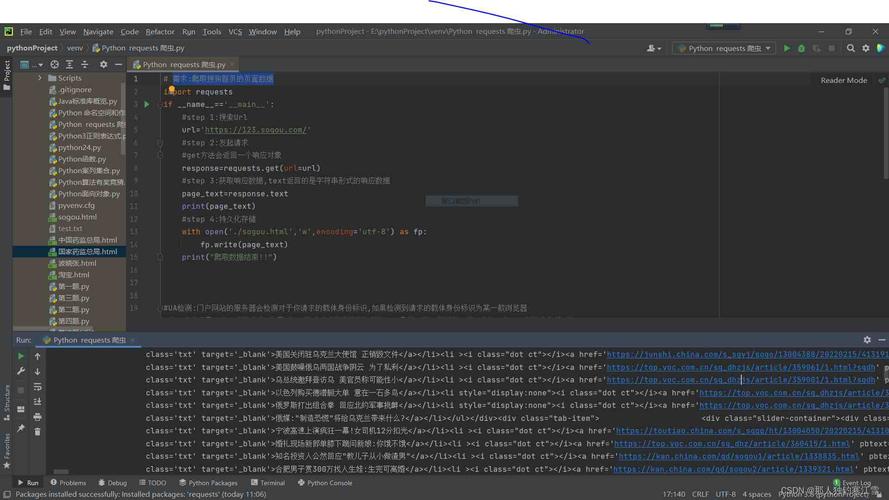
How it works: This method decodes the response content and parses it as JSON. If the response body is not valid JSON, it will raise a JSONDecodeError.
Example: Using response.json()
import requests
url = "https://api.github.com/users/octocat"
try:
    response = requests.get(url)
    response.raise_for_status()  # Check for HTTP errors
    # .json() directly returns a Python dictionary or list
    data = response.json()
    print("--- Parsed Python Dictionary (using .json()) ---")
    print(f"Name: {data['name']}")
    print(f"Bio: {data['bio']}")
    print(f"Followers: {data['followers']}")
except requests.exceptions.HTTPError as errh:
    print(f"Http Error: {errh}")
except requests.exceptions.JSONDecodeError:
    print("Error: Response was not valid JSON.")
except requests.exceptions.RequestException as err:
    print(f"Oops: Something Else: {err}")
Handling Binary Data: response.content
For non-text data like images, videos, PDFs, or compressed files, you should use the .content attribute.
How it works: .content returns the raw response body as bytes (bytes object). It does not perform any decoding.
Example: Downloading an Image
import requests
url = "https://www.python.org/static/community_logos/python-logo-master-v3-TM.png"
save_path = "python_logo.png"
try:
    response = requests.get(url, stream=True) # stream=True is good for large files
    response.raise_for_status()
    # response.content is a bytes object
    image_data = response.content
    print(f"Downloaded {len(image_data)} bytes of image data.")
    # Save the binary data to a file in binary write mode ('wb')
    with open(save_path, 'wb') as f:
        f.write(image_data)
    print(f"Image saved successfully to {save_path}")
except requests.exceptions.RequestException as err:
    print(f"An error occurred: {err}")
Efficiently Streaming Large Responses
When downloading very large files (e.g., videos, large datasets), loading the entire response into memory with .content or .text can cause your program to run out of memory. The solution is to stream the response.
The stream=True argument tells Requests not to download the response body immediately. Instead, you can read the content in small chunks (e.g., 8KB at a time) and process or save it incrementally.
Example: Streaming a Large File Download
This is the memory-efficient way to download files.
import requests
url = "http://example.com/largefile.zip" # Replace with a real large file URL
save_path = "largefile_downloaded.zip"
try:
    # Use stream=True to enable streaming
    with requests.get(url, stream=True) as response:
        response.raise_for_status()
        # The 'with' statement ensures the connection is closed automatically
        # Get the total file size from headers, if available
        total_size = int(response.headers.get('content-length', 0))
        print(f"Downloading {url}...")
        print(f"Total size: {total_size / (1024*1024):.2f} MB")
        # Open the file in binary write mode
        with open(save_path, 'wb') as f:
            # Iterate over the response data in chunks
            for chunk in response.iter_content(chunk_size=8192): # 8KB chunks
                # filter out keep-alive new chunks
                if chunk:
                    f.write(chunk)
                    # Optional: print progress
                    # print(f"Downloaded {f.tell()} / {total_size} bytes", end='\r')
        print(f"\nFile saved successfully to {save_path}")
except requests.exceptions.RequestException as err:
    print(f"An error occurred: {err}")
Other Useful Response Attributes
When you read a response, you often want to inspect more than just the body.
response.status_code: The HTTP status code (e.g., 200, 404, 500).response.headers: A dictionary-like object of response headers.response.url: The final URL of the response (after any redirects).response.elapsed: Adatetime.timedeltaobject representing how long the request took.response.reason: The HTTP reason phrase (e.g., "OK", "Not Found").
Example: Inspecting the Full Response
import requests
url = "https://httpbin.org/get" # A great site for testing HTTP requests
response = requests.get(url)
print(f"URL: {response.url}")
print(f"Status Code: {response.status_code}")
print(f"Reason: {response.reason}")
print("\n--- Headers ---")
for key, value in response.headers.items():
    print(f"{key}: {value}")
print("\n--- Elapsed Time ---")
print(f"The request took {response.elapsed.total_seconds():.2f} seconds")
# The JSON response from httpbin.org/get contains info about the request itself
print("\n--- Response JSON Body ---")
print(response.json())
Summary: Which Method to Use?
| Method | Data Type | Best For | Key Feature |
|---|---|---|---|
response.text |
str (decoded string) |
HTML, XML, plain text, or when you need the raw string before parsing. | Automatic decoding based on headers. |
response.json() |
dict or list |
APIs that return JSON data. | Decodes and parses JSON in one step. Most common for APIs. |
response.content |
bytes (raw binary) |
Images, PDFs, videos, or any non-text file. | Returns raw bytes, no decoding. |
response.iter_content() |
bytes (chunks) |
Streaming large files to save memory. | Downloads and processes data incrementally. |