Of course! This is a great question that touches on a common need for Java developers working on the Windows platform.
Here's a comprehensive guide to using the Windows API from Java, covering the different approaches, their pros and cons, and code examples.
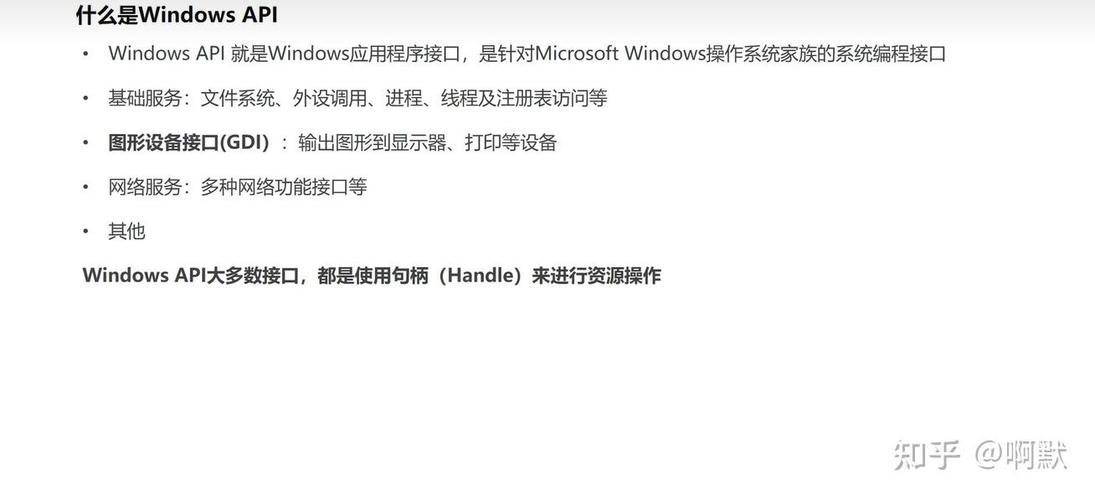
What is the Windows API?
The Windows API (Win32 API) is a set of functions, classes, and data structures provided by the Windows operating system. It allows applications to interact directly with the OS kernel, the hardware, and system services. This includes everything from creating windows and handling user input to managing files, processes, and the registry.
Java, by design, runs on the Java Virtual Machine (JVM), which abstracts away the underlying operating system. This is the core of Java's "write once, run anywhere" philosophy. However, sometimes you need to access OS-specific features, and that's where things get interesting.
The Main Approaches to Accessing the Windows API from Java
There are three primary ways to do this, each with its own trade-offs:
- JNI (Java Native Interface) - The "classic" and most powerful, but also the most complex approach.
- JNA (Java Native Access) - A modern, high-level library that is much easier to use than JNI.
- Using Existing Libraries - Leveraging pre-built libraries that wrap the Windows API for specific tasks.
JNI (Java Native Interface)
JNI is a standard programming interface that allows Java code running in a JVM to be called from native applications and libraries written in languages like C, C++, and assembly.
How it Works:
- Write Java Code: You declare a
nativemethod in your Java class. - Generate Header File: You use the
javahtool (orjavac -h) to generate a C/C++ header file (.h) from your Java class. This header defines the function signature that your native code must implement. - Write Native Code: You implement the function in a C/C++ source file.
- Compile to DLL: You compile your C/C++ code into a dynamic-link library (
.dllon Windows). - Load & Run: Your Java code loads the DLL and calls the
nativemethod, which in turn executes your native code.
Pros:
- Maximum Power & Performance: You have direct, low-level access to the entire Windows API.
- Full Control: You can use any C/C++ library or write highly optimized code.
- Standard Part of Java: No external dependencies are needed to use the API itself.
Cons:
- Very Complex: The setup, development, and debugging cycle is cumbersome.
- Verbose: You need to write a lot of boilerplate code for simple tasks.
- Memory Management: You are responsible for managing memory manually, which can lead to leaks and crashes if not done carefully.
- Platform-Specific: The
.dllyou compile is only for Windows.
Simple JNI Example: Showing a Message Box
Step 1: Java Code (JniExample.java)
public class JniExample {
    // Declare the native method
    public native void showMessageBox(String title, String message);
    static {
        // Load the native library. The name must match the compiled DLL (without .dll)
        System.loadLibrary("JniExample");
    }
    public static void main(String[] args) {
        new JniExample().showMessageBox("Hello from JNI!", "This message box was called from Java.");
    }
}
Step 2: Generate the Header File
Compile the Java code and run javah:
javac JniExample.java
javah -jni JniExample
This generates JniExample.h.
Step 3: C/C++ Code (JniExample.c)
#include <windows.h>
#include "JniExample.h" // The generated header
// The JNI implementation function
JNIEXPORT void JNICALL Java_JniExample_showMessageBox(JNIEnv *env, jobject obj, jstring title, jstring message) {
    // Convert Java strings to C-style strings
    const char *titleStr = (*env)->GetStringUTFChars(env, title, 0);
    const char *messageStr = (*env)->GetStringUTFChars(env, message, 0);
    // Call the Windows API function
    MessageBoxA(NULL, messageStr, titleStr, MB_OK | MB_ICONINFORMATION);
    // Release the C-style strings
    (*env)->ReleaseStringUTFChars(env, title, titleStr);
    (*env)->ReleaseStringUTFChars(env, message, messageStr);
}
Step 4: Compile to DLL Using a C++ compiler like MinGW or MSVC:
gcc -I"%JAVA_HOME%\include" -I"%JAVA_HOME%\include\win32" -shared -o JniExample.dll JniExample.c
Step 5: Run
Place JniExample.dll in your project directory or a path in PATH and run the Java class. A message box will appear.
JNA (Java Native Access)
JNA is a library that provides a simpler way to call native functions without writing any native code. It uses a dynamic approach to map Java methods to native functions.
How it Works:
- Add JNA Dependency: Include the JNA library in your project (e.g., via Maven or Gradle).
- Define a Library Interface: Create a Java interface that extends
com.sun.jna.Libraryand declare methods that mirror the C/C++ functions you want to call. - Load the Library: Use
Native.load()to get an instance of your interface, which JNA maps to the corresponding native library (e.g.,user32.dll). - Call Methods: Simply call the methods on the instance.
Pros:
- Extremely Easy to Use: No C/C++, no compilation, no DLL management.
- Safer: JNA handles much of the memory management and type conversion for you.
- Productive: You can get things done very quickly.
- Good Documentation: Well-documented with many examples.
Cons:
- Slight Performance Overhead: There is a small cost for the dynamic mapping, but it's negligible for most applications.
- Less Control: You don't have the fine-grained control you get with JNI.
Simple JNA Example: Showing a Message Box
Step 1: Add JNA Dependency (Maven)
<dependency>
    <groupId>net.java.dev.jna</groupId>
    <artifactId>jna-platform</artifactId>
    <version>5.12.1</version> <!-- Use the latest version -->
</dependency>
Step 2: Write the Java Code
import com.sun.jna.Library;
import com.sun.jna.Native;
import com.sun.jna.Platform;
import com.sun.jna.win32.StdCallLibrary;
import com.sun.jna.win32.W32APIOptions;
// Define the interface for the User32 DLL
public interface User32 extends StdCallLibrary {
    // The instance of the library
    User32 INSTANCE = (User32) Native.load("user32", User32.class, W32APIOptions.DEFAULT_OPTIONS);
    // Map the Windows API function MessageBoxA
    // int MessageBoxA([In] HWND hWnd, [In, Optional] LPCSTR lpText, [In, Optional] LPCSTR lpCaption, [In] UINT uType);
    int MessageBoxA(Pointer hWnd, String lpText, String lpCaption, int uType);
}
public class JnaExample {
    public static void main(String[] args) {
        // Constants for the message box
        final int MB_OK = 0x00000000;
        final int MB_ICONINFORMATION = 0x00000040;
        // Call the function directly on the JNA instance
        User32.INSTANCE.MessageBoxA(null, "This message box was called from JNA!", "Hello from JNA!", MB_OK | MB_ICONINFORMATION);
    }
}
This is dramatically simpler than the JNI equivalent!
Using Existing Libraries
For many common tasks, you don't need to call the Windows API directly. Someone has already done the hard work and wrapped it in a Java library.
| Task | Recommended Java Library | Description |
|---|---|---|
| File System Operations | java.nio.file (built-in) |
The modern way to handle files in Java. Supports many OS-specific features transparently. |
| System Tray | java.awt.SystemTray (built-in) |
A standard way to add an icon to the system tray. Works on Windows, macOS, and Linux. |
| Registry Access | commons-exec or winreg | Direct registry access is often better done by spawning a reg.exe process (commons-exec) or using a dedicated library (jwinreg). |
| Window Management | JNAerator (to generate JNA bindings) or JavaFX | For controlling other windows, you need to generate JNA bindings for user32.dll and dwmapi.dll. JavaFX is for creating your own windows. |
| Process Execution | java.lang.ProcessBuilder (built-in) |
The standard way to start external processes. Very powerful and flexible. |
Comparison Table: JNI vs. JNA
| Feature | JNI | JNA |
|---|---|---|
| Ease of Use | Very Difficult | Easy |
| Performance | Highest | Excellent (slight overhead vs JNI) |
| Boilerplate Code | Extensive (C/C++ files, makefiles) | Minimal (just a Java interface) |
| Memory Mgmt | Manual (error-prone) | Automatic (handled by JNA) |
| Dependencies | JDK, C/C++ Compiler | JNA Library JAR |
| Best For | Performance-critical tasks, complex custom C/C++ integration, low-level system hooks. | 95% of use cases, rapid development, accessing standard system libraries (DLLs). |
Recommendation: Which One Should You Use?
-
For almost all developers, start with JNA. It is the modern standard, is incredibly easy to learn, and will handle 99% of your needs for calling Windows APIs. The productivity gain is enormous.
-
Use JNI only if:
- You have already tried JNA and it doesn't meet your performance requirements.
- You need to integrate a complex, existing C++ library that cannot be easily wrapped by JNA.
- You are doing very low-level, performance-sensitive operations (e.g., high-frequency trading, game engine hooks).
-
Always check for existing Java libraries first. Before writing any
nativecode, search for a Java library that solves your problem. Reusing well-tested code is always the best option.