基础单击操作
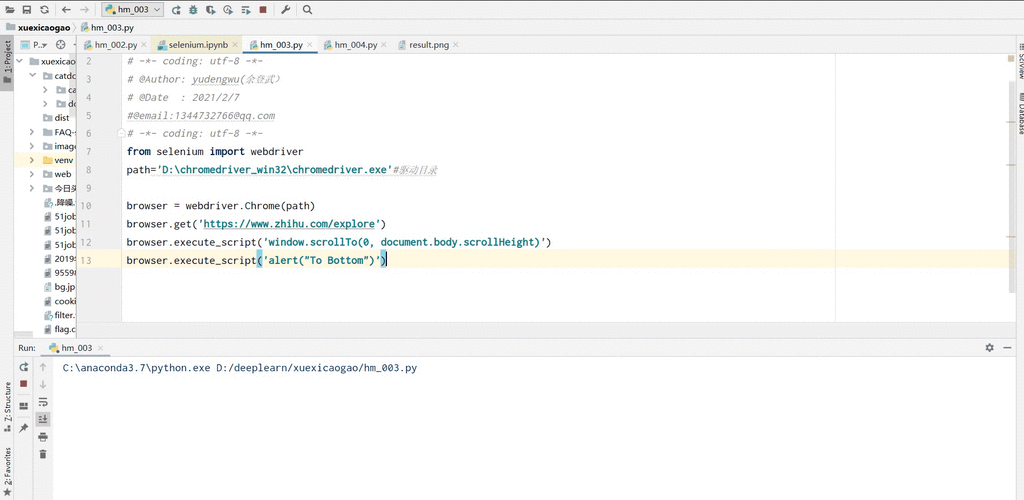
这是最核心、最常用的方法,流程是:
(图片来源网络,侵删)
- 定位到页面上的某个元素。
- 在该元素上调用
click()方法。
代码示例
假设我们要点击一个 "登录" 按钮,它的 HTML 代码可能是这样的:
<button id="login-button" class="btn btn-primary">登录</button>
from selenium import webdriver
from selenium.webdriver.common.by import By
from selenium.webdriver.chrome.service import Service
from webdriver_manager.chrome import ChromeDriverManager
import time
# 1. 设置 WebDriver
# 自动下载并管理 ChromeDriver
service = Service(ChromeDriverManager().install())
driver = webdriver.Chrome(service=service)
try:
    # 2. 打开目标网页
    driver.get("https://www.example.com/login") # 替换成你要测试的网址
    # 3. 定位元素并单击
    # 方法一:通过 ID 定位 (最推荐,因为 ID 通常唯一)
    login_button_by_id = driver.find_element(By.ID, "login-button")
    login_button_by_id.click()
    # 方法二:通过 CSS Selector 定位 (非常灵活和强大)
    # login_button_by_css = driver.find_element(By.CSS_SELECTOR, "button.btn.btn-primary")
    # login_button_by_css.click()
    # 方法三:通过 XPath 定位 (可以处理复杂结构)
    # login_button_by_xpath = driver.find_element(By.XPATH, "//button[@id='login-button']")
    # login_button_by_xpath.click()
    # 4. 等待几秒,观察效果
    time.sleep(3)
finally:
    # 5. 关闭浏览器
    driver.quit()
代码解释
from selenium.webdriver.common.by import By: 导入By类,它提供了元素定位的常量(如By.ID,By.CSS_SELECTOR),使代码更易读。driver.find_element(By.ID, "login-button"): 这是定位元素的关键。find_element: 查找单个元素,如果找不到,会抛出NoSuchElementException异常。By.ID: 告诉 Selenium 我们要通过元素的id属性来查找。"login-button": 要查找的元素的id值。
.click(): 在定位到的元素上执行单击操作。
进阶技巧与常见问题处理
在实际应用中,直接调用 click() 并不总是成功,可能会遇到各种问题,比如元素被遮挡、元素未加载完成、元素被其他元素覆盖等。
问题 1: 元素被其他元素遮挡 (最常见)
当一个元素被另一个元素(通常是弹出广告、遮罩层)覆盖时,click() 会失败,因为 Selenium 实际上点击的是上层的遮挡元素。
解决方案:使用 ActionChains
(图片来源网络,侵删)
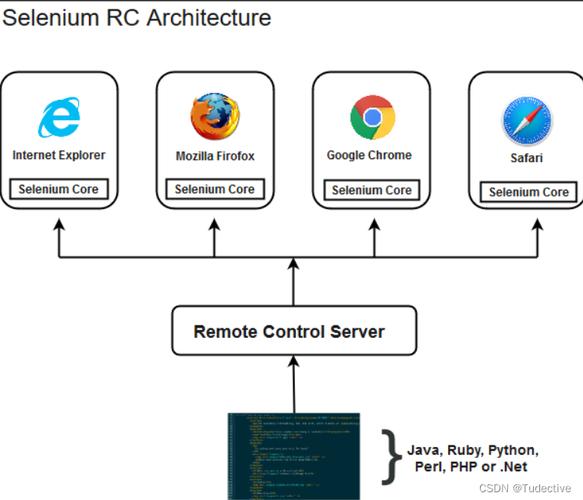
ActionChains 提供了一组模拟用户鼠标操作的方法,可以更精确地控制点击。
from selenium.webdriver.common.action_chains import ActionChains
# ... (前面的代码相同)
try:
    driver.get("https://www.example.com/login")
    # 假设 login_button 是被遮挡的元素
    login_button = driver.find_element(By.ID, "login-button")
    # 移动鼠标到该元素上,然后单击
    # 这种方法可以绕过一些简单的遮挡问题
    ActionChains(driver).move_to_element(login_button).click().perform()
    time.sleep(3)
finally:
    driver.quit()
问题 2: 元素未加载或不可交互
当你尝试点击一个尚未完全加载、被禁用 (disabled) 或不在视口中的元素时,click() 会失败。
解决方案:使用显式等待 (WebDriverWait)
显式等待会让脚本等待某个条件(如元素可点击)满足后再执行操作,而不是固定等待 time.sleep(),这是自动化测试的最佳实践。
(图片来源网络,侵删)
from selenium.webdriver.support.ui import WebDriverWait
from selenium.webdriver.support import expected_conditions as EC
# ... (前面的代码相同)
try:
    driver.get("https://www.example.com/login")
    # 等待最多 10 秒,直到 ID 为 "login-button" 的元素变为可点击状态
    wait = WebDriverWait(driver, 10)
    # 定位并等待元素可点击
    login_button = wait.until(
        EC.element_to_be_clickable((By.ID, "login-button"))
    )
    # 现在可以安全地点击了
    login_button.click()
    time.sleep(3)
finally:
    driver.quit()
问题 3: 元素在页面之外,需要滚动
如果一个元素当前不在浏览器窗口的可见区域内(需要滚动才能看到),直接 click() 可能会失败。
解决方案:先滚动到元素位置
有几种方法可以实现滚动:
- 使用
execute_script(最灵活)
# ... (前面的代码相同)
try:
    driver.get("https://www.example.com/login")
    login_button = driver.find_element(By.ID, "login-button")
    # 使用 JavaScript 将元素滚动到视图中央
    driver.execute_script("arguments[0].scrollIntoView({block: 'center'});", login_button)
    # 短暂等待滚动动画完成
    time.sleep(1)
    login_button.click()
    time.sleep(3)
finally:
    driver.quit()
- 使用
ActionChains
# ... (前面的代码相同)
try:
    driver.get("https://www.example.com/login")
    login_button = driver.find_element(By.ID, "login-button")
    # 移动到元素也会触发滚动
    ActionChains(driver).move_to_element(login_button).perform()
    login_button.click()
    time.sleep(3)
finally:
    driver.quit()
总结与最佳实践
| 场景 | 推荐方法 | 代码示例 |
|---|---|---|
| 标准单击 | element.click() |
driver.find_element(By.ID, "btn").click() |
| 元素被遮挡 | ActionChains |
ActionChains(driver).move_to_element(element).click().perform() |
| 元素未加载/不可用 | 显式等待 | WebDriverWait(driver, 10).until(EC.element_to_be_clickable((By.ID, "btn"))) |
| 元素在视口外 | execute_script 滚动 |
driver.execute_script("arguments[0].scrollIntoView();", element) |
最佳实践建议:
- 优先使用
WebDriverWait:在你的自动化脚本中,几乎所有的元素定位和交互都应该配合显式等待,这样可以大大提高脚本的稳定性和执行效率。 - 优先使用
ID或CSS Selector:定位元素时,首选By.ID,因为它最快且最稳定,ID 不存在,By.CSS_SELECTOR是一个非常强大和灵活的选择。By.XPATH功能强大,但相对较慢且脆弱,应作为最后手段。 - 组合使用:在实际项目中,通常需要组合使用这些技巧,先等待元素出现,然后滚动到它,最后用
ActionChains点击。
希望这份详细的指南能帮助你掌握 Selenium Python 的单击操作!