Of course! Here is a complete guide to creating and running the classic "Hello, World!" program in Java, broken down for absolute beginners.
What is "Hello, World!"?
It's the simplest possible program in any programming language. Its only purpose is to display the text "Hello, World!" on the screen. It's used to make sure your development environment (compiler, etc.) is set up correctly.
Step 1: Prerequisites - Install the Java Development Kit (JDK)
Before you can write and run Java code, you need the JDK. The JDK contains the Java compiler (javac) and the Java Virtual Machine (java), which are essential for turning your code into a running program.
-
Check if you already have Java installed: Open your terminal or command prompt and type:
java -version
If you see a version number (e.g.,
java version "17.0.2"), you're good to go! You can also check for the compiler withjavac -version. (图片来源网络,侵删)
 -
If you need to install it:
- Go to the official Oracle Java Downloads page: https://www.oracle.com/java/technologies/downloads/
- Download the latest LTS (Long-Term Support) version for your operating system (Windows, macOS, or Linux).
- Run the installer. Important: During installation, make sure to check the box that says "Set JAVA_HOME environment variable". This makes it much easier to use Java from the command line.
Step 2: Write the Code
You'll need a text editor. You can use something simple like Notepad (on Windows), TextEdit (on macOS), or a more advanced code editor like Visual Studio Code, IntelliJ IDEA, or Eclipse.
- Create a new file named
HelloWorld.java. - Copy and paste the following code into the file:
// HelloWorld.java
public class HelloWorld {
    public static void main(String[] args) {
        // This line prints "Hello, World!" to the console
        System.out.println("Hello, World!");
    }
}
Code Breakdown:
public class HelloWorld { ... }- In Java, all code lives inside a
class. We've named our classHelloWorld. - The file name must match the public class name, so
HelloWorld.javais correct.
- In Java, all code lives inside a
public static void main(String[] args) { ... }This is the main method. It's the entry point of any Java application. When you run your program, the Java Virtual Machine (JVM) looks for this specific method to start executing your code.
System.out.println("Hello, World!");- This is the command that does the work.
System.outis the standard output stream (usually your console/terminal)..println()is a method that prints the text inside the quotes and then moves to the next line."Hello, World!"is the string of text we want to display.
Step 3: Compile the Code (Create the .class file)
Now you need to use the Java compiler (javac) to turn your human-readable .java source file into Java bytecode, which is a machine-readable .class file.
- Open your terminal or command prompt.
- Navigate to the directory where you saved
HelloWorld.java. For example:cd Desktop cd JavaProjects
- Run the
javaccommand:javac HelloWorld.java
- If the command runs successfully, you will see a new file in the same directory:
HelloWorld.class. This is the compiled bytecode.
Step 4: Run the Program (Execute the bytecode)
Finally, you'll use the java command to run your compiled program. The java command starts the JVM, which loads your class and executes its main method.
- Make sure you are still in the same directory in your terminal.
- Run the
javacommand:java HelloWorld
Note: Notice that you do not include the
.classextension when running the program. You are telling thejavacommand which class to run, not which file to execute.
Expected Output
You should see the following output printed to your console:
Hello, World!Alternative: Using an IDE (like IntelliJ IDEA)
While the command-line method is great for understanding the fundamentals, most developers use an Integrated Development Environment (IDE). An IDE like IntelliJ IDEA (Community Edition is free) makes this process much easier.
Here's how you'd do it in IntelliJ:
-
Create a New Project:
- Open IntelliJ.
- Click "New Project".
- Select "Java" and make sure a JDK is selected.
- Click "Create".
-
Create the Class:
- In the
srcfolder on the left, right-click and selectNew > Java Class. - Name the class
HelloWorldand press Enter.
- In the
-
Write the Code:
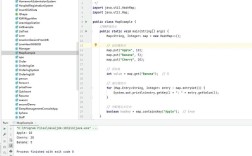
- IntelliJ will automatically create the file with the class structure. Just add the
System.out.println()line inside themainmethod.
- IntelliJ will automatically create the file with the class structure. Just add the
-
Run the Code:
- Click the green "play" button (▶) next to the
mainmethod. - The output will appear in the "Run" window at the bottom of the screen.
- Click the green "play" button (▶) next to the
IDEs handle the compiling and running steps for you behind the scenes, letting you focus on writing code.