Of course! Here's a comprehensive guide to using OpenImageIO with Python.

What is OpenImageIO?
OpenImageIO is a powerful, open-source library for reading, writing, and manipulating images. It's designed to be a high-performance, feature-rich toolkit that supports a vast number of image file formats (over 50, including OpenEXR, TIFF, JPEG, PNG, HDR, etc.).
The Python bindings (PyOpenImageIO) allow you to access this functionality directly from your Python scripts, making it an excellent choice for:
- Image I/O: Reading and writing a huge variety of image formats with a single, consistent API.
- Image Processing: Performing common operations like resizing, converting color spaces, and metadata manipulation.
- Rendering Pipelines: It's the backbone of many renderers (like Arnold and Blender's Cycles) for handling image sequences and data.
- High Performance: It's much faster than pure Python libraries like Pillow for certain operations, especially when dealing with large files or many files.
Installation
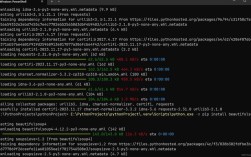
The easiest way to install PyOpenImageIO is using pip. It's highly recommended to also install the imageio library, as PyOpenImageIO provides a imageio plugin, which is often the most convenient way to use it.
# This is the recommended installation
pip install openimageio imageio
# If you only want the core library without the imageio plugin
pip install openimageio
On some systems (especially Linux), you might need to install the underlying C++ library first. pip will usually try to build it from source if it's not found, which can be slow and require build tools.
# On Debian/Ubuntu
sudo apt-get update
sudo apt-get install libopenimageio-dev
# On Fedora/CentOS
sudo dnf install openimageio-devel
# On macOS (using Homebrew)
brew install openimageio
Basic Usage: Reading and Writing Images
The core of PyOpenImageIO revolves around the ImageInput and ImageOutput classes for reading and writing, respectively.
Reading an Image
The ImageInput.open() function is the entry point for reading an image. It returns an ImageInput object.
import OpenImageIO as oiio
# The 'with' statement ensures the file is properly closed
try:
    # Open the image file
    with oiio.ImageInput.open("path/to/your/image.jpg") as infile:
        # Check if the file opened successfully
        if not infile:
            print(f"Could not open file: {oiio.geterror()}")
            exit()
        # Get metadata about the image
        spec = infile.spec()
        width = spec.width
        height = spec.height
        channels = spec.nchannels
        data_type = spec.format # e.g., oiio.UINT8, oiio.FLOAT
        print(f"Image Info: {width}x{height}, {channels} channels, Type: {data_type}")
        # Read the entire image into a NumPy array
        # This is the most common and convenient way
        img_array = infile.read_image()
        print(f"Image data shape: {img_array.shape}")
        # For an RGB JPEG, shape will be (height, width, 3)
except Exception as e:
    print(f"An error occurred: {e}")
Writing an Image
Writing is done using the ImageOutput.create() and ImageOutput.open() methods.
import OpenImageIO as oiio
import numpy as np
# Create a sample NumPy array (e.g., a 100x100 red image)
# Data type must be supported (UINT8, FLOAT, etc.)
img_data = np.zeros((100, 100, 3), dtype=np.uint8)
img_data[:, :, 0] = 255 # Set the red channel to full
output_filename = "output_image.png"
try:
    # Create an ImageOutput object. The format is often inferred from the extension.
    with oiio.ImageOutput.create(output_filename) as outfile:
        if not outfile:
            print(f"Could not create output for: {output_filename}")
            print(f"Error: {oiio.geterror()}")
            exit()
        # Create an ImageSpec describing the image we want to write
        spec = oiio.ImageSpec(img_data.shape[1], img_data.shape[0], 3, oiio.UINT8)
        # Optional: Add metadata (called "attributes")
        spec.attribute("Compression", "zip") # For PNG
        spec.attribute("Artist", "Python Script")
        spec.attribute("Description", "An image created with PyOpenImageIO")
        # Open the file for writing with the given spec
        if outfile.open(output_filename, spec):
            # Write the image data from the NumPy array
            # The data must be contiguous in memory
            if outfile.write_image(img_array):
                print(f"Successfully wrote image to {output_filename}")
            else:
                print(f"Error writing image: {outfile.geterror()}")
        else:
            print(f"Error opening file for writing: {outfile.geterror()}")
except Exception as e:
    print(f"An error occurred: {e}")
Key Features and Common Operations
Handling Image Spec (Metadata)
The ImageSpec object is crucial. It contains all the metadata for an image, including dimensions, data type, and key-value attributes.
spec = oiio.ImageSpec(512, 512, 4, oiio.FLOAT) # RGBA, 32-bit float
# Set attributes
spec.attribute("Software", "My Awesome App")
spec.attribute("Compression", "piz") # For OpenEXR
spec.attribute("worldtocamera", np.eye(4).astype(np.float32)) # 4x4 matrix
Image Manipulation
While PyOpenImageIO is primarily an I/O library, it includes some basic image manipulation functions that are highly optimized.
import OpenImageIO as oiio
import numpy as np
# Assume img_array is a NumPy array from a previous read operation
# 1. Convert data type
img_float = oiio.TypeDesc(oiio.TypeDesc.FLOAT).convert_image(img_array)
# 2. Resize an image
# This creates a new, resized ImageSpec
new_spec = img_array.spec().copy()
new_spec.width = 256
new_spec.height = 256
resized_array = oiio.ImageBufAlgo.resize(new_spec, img_array.spec(), img_array)
# 3. Color conversion
# Convert from sRGB to linear Rec.709
img_linear = oiio.ImageBufAlgo.colorconvert(img_array, "sRGB", "linear")
# 4. Crop an image
cropped_array = oiio.ImageBufAlgo.crop(img_array, 50, 50, 200, 200) # xbegin, ybegin, xend, yend
Reading/Writing Image Sequences
This is a major strength of OpenImageIO. You can use C-style format strings to handle sequences.
# Reading a sequence
sequence_pattern = "rendered_####.exr"
with oiio.ImageInput.open(sequence_pattern) as infile:
    if not infile:
        print(f"Could not open sequence: {oiio.geterror()}")
        exit()
    # The spec will be for the *first* image in the sequence
    spec = infile.spec()
    print(f"First frame: {spec.width}x{spec.height}")
    # To read other frames, you would typically use a loop and infile.seek_subimage()
# Writing a sequence
output_pattern = "output_####.jpg"
with oiio.ImageOutput.create(output_pattern) as outfile:
    spec = oiio.ImageSpec(640, 480, 3, oiio.UINT8)
    spec.attribute("Compression", "jpeg")
    if outfile.open(output_pattern, spec):
        for i in range(100): # Write 100 frames
            # Create some dummy data for each frame
            frame_data = np.random.randint(0, 256, (480, 640, 3), dtype=np.uint8)
            outfile.write_image(frame_data)
        print(f"Wrote 100 frames to {output_pattern}")
Using the imageio Plugin
This is often the simplest way to use PyOpenImageIO if you're already familiar with imageio. The installation (pip install openimageio imageio) automatically registers the plugin.
import imageio
import numpy as np
# imageio will automatically use the OpenImageIO backend if it's available
# and the format is supported by OIIO.
# Reading is the same as with any imageio plugin
img = imageio.imread("path/to/image.exr")
print(f"Image shape: {img.shape}, dtype: {img.dtype}")
# Writing is also the same
# imageio will use OIIO's high-quality EXR writer
output_data = np.random.rand(256, 256, 3).astype(np.float32)
imageio.imwrite("output_from_imageio.exr", output_data)
This approach is fantastic because it gives you the power of OIIO's format support with the familiar imageio API.
Performance Comparison (OIIO vs. Pillow)
For simple tasks, Pillow is fine. But for performance, especially with large files or specific formats, OIIO excels.
import time
import OpenImageIO as oiio
import numpy as np
from PIL import Image
# Create a large test image (e.g., 4K)
large_img_array = np.random.randint(0, 256, (2160, 3840, 3), dtype=np.uint8)
filename = "large_test.png"
# --- Write with OIIO ---
start_time = time.time()
with oiio.ImageOutput.create(filename) as outfile:
    spec = oiio.ImageSpec(large_img_array.shape[1], large_img_array.shape[0], 3, oiio.UINT8)
    outfile.open(filename, spec)
    outfile.write_image(large_img_array)
oiio_write_time = time.time() - start_time
# --- Write with Pillow ---
start_time = time.time()
Image.fromarray(large_img_array).save(filename)
pillow_write_time = time.time() - start_time
print(f"OIIO Write Time: {oiio_write_time:.4f} seconds")
print(f"Pillow Write Time: {pillow_write_time:.4f} seconds")
# --- Read with OIIO ---
start_time = time.time()
with oiio.ImageInput.open(filename) as infile:
    _ = infile.read_image()
oiio_read_time = time.time() - start_time
# --- Read with Pillow ---
start_time = time.time()
_ = Image.open(filename)
pillow_read_time = time.time() - start_time
print(f"\nOIIO Read Time: {oiio_read_time:.4f} seconds")
print(f"Pillow Read Time: {pillow_read_time:.4f} seconds")
Typical Results:
You'll often find that PyOpenImageIO is significantly faster for reading and writing, especially for formats like OpenEXR or large TIFFs. The difference is most pronounced on reads. This is because OIIO is designed for high-throughput workflows common in visual effects and rendering.
Summary and When to Use It
| Feature | PyOpenImageIO |
Pillow |
imageio (basic) |
|---|---|---|---|
| Primary Use | High-performance I/O, rendering pipelines | General-purpose image manipulation | Simple I/O, format conversion |
| Performance | Excellent (especially for large files) | Good | Moderate |
| Format Support | Excellent (50+ formats, incl. OpenEXR, HDR) | Very Good (common formats) | Good (relies on backends) |
| API | C++ style, explicit, powerful | Pythonic, object-oriented | Simple, high-level |
| Dependencies | C++ library (OpenImageIO) | Pure Python | Minimal |
| Best For | Reading/writing image sequences, VFX pipelines, when speed is critical. | Everyday image tasks, web graphics, simple edits. | Quick and dirty image I/O, format conversion. |
Choose PyOpenImageIO when:
- You need to read or write a format not supported by other libraries (like OpenEXR, HDR, or ARW/CR2 raw files).
- You are working with large images or image sequences and need the best possible performance.
- You are building a rendering or processing pipeline and need robust metadata handling.
- You need to perform basic, fast image manipulations like resize or color convert.