Of course! Generating PDFs in a Tornado web application is a common task for creating reports, invoices, or any document that needs a fixed layout. Here’s a comprehensive guide covering the most popular and effective methods, complete with code examples.
Summary of Methods
| Method | Best For | Pros | Cons |
|---|---|---|---|
| WeasyPrint | HTML/CSS to PDF | Excellent CSS support, modern, easy to use with templates. | Can be resource-intensive, requires system dependencies (Pango, Cairo). |
| ReportLab | Programmatic PDFs | Pure Python, no external deps, full control over PDF elements. | Steeper learning curve, HTML/CSS rendering is limited. |
| wkhtmltopdf | Faithful HTML Rendering | Extremely faithful to HTML/CSS, good for complex layouts. | Slower, requires a system binary, can be finicky to install. |
Method 1: WeasyPrint (Recommended for HTML/CSS)
WeasyPrint is a modern library that takes HTML and CSS (and even SVG) and converts them into high-quality PDFs. It's often the best choice because you can leverage your existing HTML/CSS skills.
Step 1: Installation
First, you need to install WeasyPrint and its system dependencies. This is the most critical step.
A. Install System Dependencies
- On Debian/Ubuntu:
sudo apt-get update
sudo apt-get install -y python3-dev build-essential python3-pip python3-setuptools python3-wheel libpango-1.0-0 libpangoft2-1.0-0 libpangocairo-1.0-0 libgdk-pixbuf2.0-0 libffi-dev shared-mime-info
- On macOS (using Homebrew):
brew install pango cairo pkg-config
- On Windows: This is more complex. It's highly recommended to use a package manager like
chocoorscoopor to use a pre-compiled binary from the WeasyPrint website.
B. Install Python Package

Once the system dependencies are in place, install the Python package:
pip install weasyprint
Step 2: Create a Tornado Handler
Let's create a handler that generates a simple invoice from an HTML template.
main.py
import tornado.ioloop
import tornado.web
import tornado.escape
import os
import io
import weasyprint
from tornado.template import Loader
# --- HTML Template for the PDF ---
# We use a simple HTML string here, but you could load from a .html file.
PDF_TEMPLATE = """
<!DOCTYPE html>
<html>
<head>
    <meta charset="utf-8">Invoice {{ invoice_id }}</title>
    <style>
        body { font-family: sans-serif; }
        .invoice-box { max-width: 800px; margin: auto; padding: 30px; border: 1px solid #eee; box-shadow: 0 0 10px rgba(0, 0, 0, 0.15); }
        .header { text-align: center; border-bottom: 1px solid #eee; padding-bottom: 20px; }
        .title { font-size: 24px; font-weight: bold; margin-bottom: 10px; }
        .info { display: flex; justify-content: space-between; margin-bottom: 20px; }
        .table { width: 100%; border-collapse: collapse; margin-top: 20px; }
        .table th, .table td { border: 1px solid #ddd; padding: 8px; text-align: left; }
        .table th { background-color: #f2f2f2; }
        .total { text-align: right; font-size: 18px; font-weight: bold; margin-top: 20px; }
    </style>
</head>
<body>
    <div class="invoice-box">
        <div class="header">
            <div class="title">Invoice #{{ invoice_id }}</div>
            <p>Date: {{ date }}</p>
        </div>
        <div class="info">
            <div>
                <strong>Bill To:</strong><br>
                {{ customer_name }}<br>
                {{ customer_email }}
            </div>
            <div>
                <strong>From:</strong><br>
                Your Company<br>
                contact@yourcompany.com
            </div>
        </div>
        <table class="table">
            <thead>
                <tr>
                    <th>Description</th>
                    <th>Quantity</th>
                    <th>Price</th>
                </tr>
            </thead>
            <tbody>
                {% for item in items %}
                <tr>
                    <td>{{ item.description }}</td>
                    <td>{{ item.quantity }}</td>
                    <td>${{ item.price }}</td>
                </tr>
                {% end %}
            </tbody>
        </table>
        <div class="total">
            Total: ${{ total }}
        </div>
    </div>
</body>
</html>
"""
class PDFHandler(tornado.web.RequestHandler):
    def get(self):
        invoice_id = self.get_argument("id", "12345")
        # 1. Prepare the context for the template
        context = {
            "invoice_id": invoice_id,
            "date": "2025-10-27",
            "customer_name": "John Doe",
            "customer_email": "john.doe@example.com",
            "items": [
                {"description": "Web Development", "quantity": 40, "price": 100},
                {"description": "UI/UX Design", "quantity": 20, "price": 75},
                {"description": "SEO Consultation", "quantity": 5, "price": 150},
            ],
            "total": 5250
        }
        # 2. Render the HTML template with the context
        # WeasyPrint can take a string directly, so we use string formatting.
        html_content = tornado.escape.to_unicode(PDF_TEMPLATE)
        html_rendered = html_content.format(**context)
        # 3. Generate the PDF from the HTML string
        pdf_data = weasyprint.HTML(string=html_rendered).write_pdf()
        # 4. Set the headers to trigger a download in the browser
        self.set_header("Content-Type", "application/pdf")
        self.set_header("Content-Disposition", f"attachment; filename=invoice_{invoice_id}.pdf")
        # 5. Write the PDF data to the response
        self.write(pdf_data)
def make_app():
    return tornado.web.Application([
        (r"/pdf", PDFHandler),
    ])
if __name__ == "__main__":
    app = make_app()
    app.listen(8888)
    print("Server running on http://localhost:8888")
    tornado.ioloop.IOLoop.current().start()
How to Run:
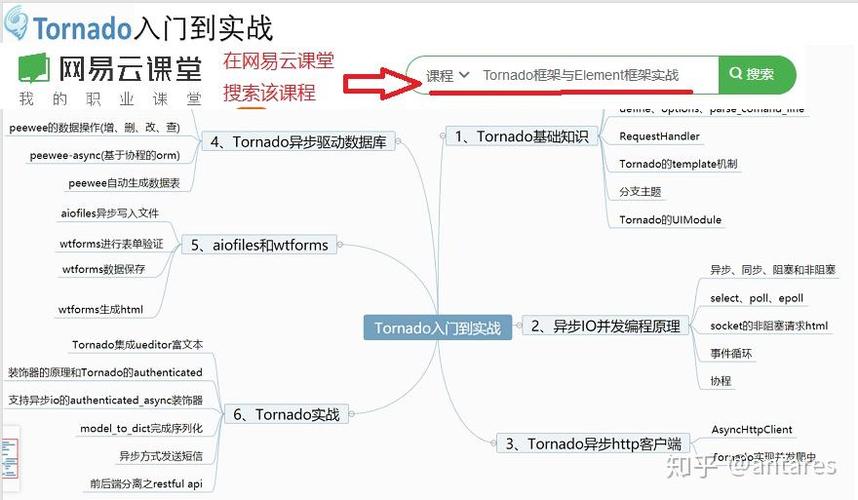
- Save the code as
main.py. - Make sure you've installed the system dependencies and
weasyprint. - Run the server:
python main.py - Open your browser and go to
http://localhost:8888/pdf?id=INV-6789. The PDF should download automatically.
Method 2: ReportLab (For Programmatic PDFs)
ReportLab is a powerful, pure-Python library for creating PDF documents. It's great when you need to programmatically draw elements, add charts, or don't want to rely on HTML/CSS.
Step 1: Installation
This is much simpler as it has no external system dependencies.
pip install reportlab
Step 2: Create a Tornado Handler
This example will create a simple PDF with text, a table, and a chart.
main.py
import tornado.ioloop
import tornado.web
import io
from reportlab.lib.pagesizes import letter
from reportlab.platypus import SimpleDocTemplate, Paragraph, Spacer, Table, TableStyle
from reportlab.lib.styles import getSampleStyleSheet
from reportlab.lib import colors
from reportlab.lib.units import inch
class ReportLabPDFHandler(tornado.web.RequestHandler):
    def get(self):
        # 1. Create a buffer to hold the PDF
        buffer = io.BytesIO()
        # 2. Create a PDF document
        doc = SimpleDocTemplate(buffer, pagesize=letter)
        story = []
        styles = getSampleStyleSheet()
        # --- Add content to the PDF ---
        title = Paragraph("Sales Report", styles['h1'])
        story.append(title)
        story.append(Spacer(1, 12))
        # Add a paragraph
        p = Paragraph("This report summarizes the sales performance for Q3 2025.", styles['BodyText'])
        story.append(p)
        story.append(Spacer(1, 20))
        # Add a table
        data = [
            ['Product', 'Sales', 'Revenue'],
            ['Widget A', '150', '$15,000'],
            ['Widget B', '200', '$20,000'],
            ['Widget C', '120', '$14,400'],
        ]
        table = Table(data, colWidths=[2*inch, 1*inch, 1.5*inch])
        table.setStyle(TableStyle([
            ('BACKGROUND', (0, 0), (-1, 0), colors.grey),
            ('TEXTCOLOR', (0, 0), (-1, 0), colors.whitesmoke),
            ('ALIGN', (0, 0), (-1, -1), 'CENTER'),
            ('FONTNAME', (0, 0), (-1, 0), 'Helvetica-Bold'),
            ('FONTSIZE', (0, 0), (-1, 0), 14),
            ('BOTTOMPADDING', (0, 0), (-1, 0), 12),
            ('BACKGROUND', (0, 1), (-1, -1), colors.beige),
            ('GRID', (0, 0), (-1, -1), 1, colors.black)
        ]))
        story.append(table)
        story.append(Spacer(1, 30))
        # 3. Build the PDF document
        doc.build(story)
        # 4. Get the value of the BytesIO buffer and write it to the response
        pdf_value = buffer.getvalue()
        buffer.close()
        # 5. Set headers and write the PDF data
        self.set_header("Content-Type", "application/pdf")
        self.set_header("Content-Disposition", "attachment; filename=sales_report.pdf")
        self.write(pdf_value)
def make_app():
    return tornado.web.Application([
        (r"/reportlab-pdf", ReportLabPDFHandler),
    ])
if __name__ == "__main__":
    app = make_app()
    app.listen(8888)
    print("Server running on http://localhost:8888")
    tornado.ioloop.IOLoop.current().start()
How to Run:
- Save the code as
main.py. - Install ReportLab:
pip install reportlab - Run the server:
python main.py - Go to
http://localhost:8888/reportlab-pdfto download the PDF.
Method 3: wkhtmltopdf (For Faithful HTML Rendering)
wkhtmltopdf is a command-line tool that uses the WebKit rendering engine to convert HTML to PDF. It's excellent for creating complex, pixel-perfect PDFs from existing websites or complex HTML files.
Step 1: Installation
You need to install the wkhtmltopdf binary on your system.
- Download from the official website and follow the installation instructions for your OS.
- Make sure the
wkhtmltopdfexecutable is in your system's PATH.
Step 2: Install Python Wrapper
The pdfkit library is a convenient Python wrapper for wkhtmltopdf.
pip install pdfkit
Step 3: Create a Tornado Handler
This example will use an external HTML file for better organization.
template.html
<!DOCTYPE html>
<html>
<head>wkhtmltopdf Example</title>
    <style>
        body { font-family: 'Courier New', Courier, monospace; }
        .container { border: 2px dashed blue; padding: 20px; }
        .highlight { background-color: yellow; font-weight: bold; }
    </style>
</head>
<body>
    <h1>wkhtmltopdf PDF Generation</h1>
    <p>This HTML was converted to a PDF using the <span class="highlight">wkhtmltopdf</span> engine.</p>
    <div class="container">
        <p>This text is inside a styled container.</p>
    </div>
</body>
</html>
main.py
import tornado.ioloop
import tornado.web
import os
import pdfkit # Import the wrapper
# Path to your wkhtmltopdf executable. If it's in your PATH, you might not need this.
# On Windows, it might look like: "C:/Program Files/wkhtmltopdf/bin/wkhtmltopdf.exe"
# On Linux/macOS, it might be: "/usr/local/bin/wkhtmltopdf"
# It's good practice to set this via an environment variable.
wkhtmltopdf_path = os.environ.get('WKHTMLTOPDF_PATH', 'wkhtmltopdf')
class WkhtmltopdfHandler(tornado.web.RequestHandler):
    def get(self):
        # 1. Define the path to your HTML template
        html_file_path = os.path.join(os.path.dirname(__file__), 'template.html')
        # 2. Define options for wkhtmltopdf
        # 'quiet': suppress all console output
        # 'encoding': 'UTF-8' is important for special characters
        options = {
            'quiet': '',
            'encoding': 'UTF-8',
        }
        try:
            # 3. Generate the PDF from the HTML file
            # pdfkit.from_file returns the PDF as bytes
            pdf_data = pdfkit.from_file(html_file_path, False, options=options, wkhtmltopdf=wkhtmltopdf_path)
            # 4. Set headers and write the PDF data
            self.set_header("Content-Type", "application/pdf")
            self.set_header("Content-Disposition", "attachment; filename=wkhtmltopdf_report.pdf")
            self.write(pdf_data)
        except Exception as e:
            self.set_status(500)
            self.write(f"Error generating PDF: {e}")
def make_app():
    return tornado.web.Application([
        (r"/wkhtmltopdf-pdf", WkhtmltopdfHandler),
    ])
if __name__ == "__main__":
    app = make_app()
    app.listen(8888)
    print("Server running on http://localhost:8888")
    tornado.ioloop.IOLoop.current().start()
How to Run:
- Save the HTML code as
template.htmland the Python code asmain.pyin the same directory. - Install
pdfkit:pip install pdfkit - Ensure
wkhtmltopdfis installed and in your system's PATH (or set theWKHTMLTOPDF_PATHenvironment variable). - Run the server:
python main.py - Go to
http://localhost:8888/wkhtmltopdf-pdfto download the PDF.
Which One Should You Choose?
- Start with WeasyPrint. It's the most modern and Pythonic way to handle HTML/CSS. The main hurdle is the system dependencies, but once that's solved, it's fantastic.
- Use ReportLab if your PDFs are highly structured, data-driven, and you need to generate charts or draw shapes directly. It's also a great choice if you can't install system dependencies.
- Consider wkhtmltopdf if WeasyPrint doesn't render a specific CSS feature correctly or if you have very complex, existing HTML/CSS that you want to convert with minimal changes. It's the "heavy artillery" for HTML-to-PDF.