Of course. Here is a comprehensive guide to working with Java on Ubuntu 16.04, covering installation, verification, and setting up the environment variables.

Important Note: Ubuntu 16.04 is End-of-Life (EOL)
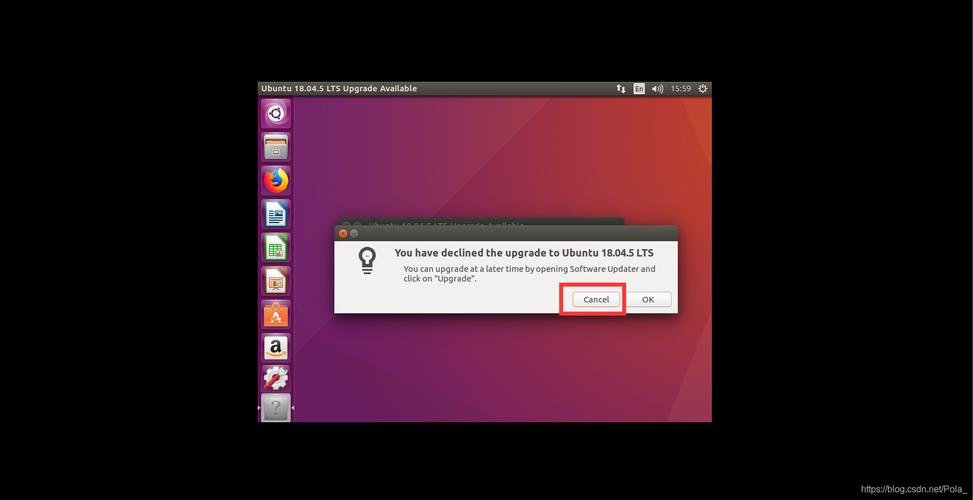
Ubuntu 16.04 reached its official End of Life in April 2025. This means it no longer receives security updates or bug fixes from Canonical. Running an EOS system is a significant security risk.
Strong Recommendation: If at all possible, you should upgrade to a supported, Long-Term Support (LTS) version of Ubuntu, such as 04 LTS or 04 LTS. The Java installation process on modern Ubuntu versions is much simpler and more secure.
If you absolutely must use Ubuntu 16.04 for a specific legacy application, proceed with caution.
Option 1: Installing OpenJDK (Recommended)
The Open Java Development Kit (OpenJDK) is the most common and free way to get Java. It's what most developers use. We'll install Java 8, which was a very popular and stable version during the Ubuntu 16.04 era.
Step 1: Update Your Package List
It's always good practice to start by updating your system's package index.
sudo apt-get update
Step 2: Install OpenJDK 8
Use the following command to install the default JDK 8 package. This package includes both the Java Runtime Environment (JRE) and the Java Development Kit (JDK).
sudo apt-get install openjdk-8-jdk
During the installation, you might be asked to confirm the disk space usage. Press Y and Enter to proceed.
Step 3: Verify the Installation
After the installation is complete, you can verify that Java is installed correctly.
-
Check the Java Version: This command will show you the installed version of Java.
java -version
You should see output similar to this:
openjdk version "1.8.0_312" OpenJDK Runtime Environment (build 1.8.0_312-8u312-b07-0ubuntu1~16.04.1-b07) OpenJDK 64-Bit Server VM (build 25.312-b07, mixed mode) -
Check the Compiler (Javac) Version: This confirms the JDK (compiler) is also installed.
javac -version
Output:
javac 1.8.0_312
Option 2: Setting the JAVA_HOME Environment Variable
Many Java-based applications and build tools (like Maven, Gradle, Tomcat) require the JAVA_HOME environment variable to be set. This variable points to the root directory of your Java installation.
Step 1: Find the Java Installation Path
The update-java-alternatives tool helps you find the correct path.
sudo update-java-alternatives --list
You will see output like this, showing the available Java versions and their paths:
java-1.8.0-openjdk-amd64 /usr/lib/jvm/java-1.8.0-openjdk-amd64Copy the path from the second column. In this example, it's /usr/lib/jvm/java-1.8.0-openjdk-amd64.
Step 2: Set the JAVA_HOME Variable
There are two common ways to set environment variables: system-wide or for a specific user.
Method A: System-Wide (For all users)
This method requires sudo and affects all users on the system.
-
Open the
/etc/environmentfile with a text editor likenano:sudo nano /etc/environment
-
Add the following line to the end of the file. Replace the path with the one you found in Step 1.
JAVA_HOME="/usr/lib/jvm/java-1.8.0-openjdk-amd64" -
Save the file and exit. In
nano, you do this by pressingCtrl+X, thenY, andEnter. -
Important: You must either log out and log back in, or run the following command for the changes to take effect in your current terminal session:
source /etc/environment
Method B: User-Specific (Recommended for most cases)
This method only affects your current user and doesn't require sudo.
-
Open your user's shell profile file. For Bash (the default on Ubuntu), this is
~/.bashrc.nano ~/.bashrc
-
Add the following line to the end of the file. Replace the path with the one you found in Step 1.
export JAVA_HOME="/usr/lib/jvm/java-1.8.0-openjdk-amd64"
-
Save the file and exit (
Ctrl+X,Y,Enter). -
Apply the changes to your current terminal session by sourcing the file:
source ~/.bashrc
Step 3: Verify JAVA_HOME
You can verify that the variable was set correctly by running:
echo $JAVA_HOME
It should print the path you configured:
/usr/lib/jvm/java-1.8.0-openjdk-amd64Option 3: Installing Oracle JDK (Alternative)
Some developers prefer the Oracle JDK. The process is slightly different.
Step 1: Add the Oracle Java Repository
First, add the Oracle public key to your system's trusted keys.
sudo apt-get install python-software-properties
sudo add-apt-repository ppa:webupd8team/java
You will be prompted to press Enter to continue.
Step 2: Update Your Package List Again
Now that you've added a new repository, update the package list.
sudo apt-get update
Step 3: Install Oracle JDK 8
You can now install the Oracle JDK. You will be prompted to accept the Oracle license agreement.
sudo apt-get install oracle-java8-installer
Press Tab to select OK and Enter to proceed through the license.
Step 4: Set the JAVA_HOME (Optional but Recommended)
The Oracle installer often sets this up for you, but it's good to verify. The path is typically /usr/lib/jvm/java-8-oracle. Follow the same steps in Option 2 to set and verify JAVA_HOME.
Summary
| Task | Command / Action |
|---|---|
| Update System | sudo apt-get update |
| Install OpenJDK 8 | sudo apt-get install openjdk-8-jdk |
| Check Java Version | java -version |
| Find Java Path | sudo update-java-alternatives --list |
Set JAVA_HOME (User) |
Add export JAVA_HOME="..." to ~/.bashrc |
Verify JAVA_HOME |
echo $JAVA_HOME |
Again, please prioritize upgrading to a supported Ubuntu version for better security and a smoother experience.