Of course! In Python, "send key event" usually refers to programmatically simulating keyboard input. This is a common task for automation, testing, or creating macros.
The best library for this depends on your operating system (Windows, macOS, or Linux). Here’s a breakdown of the most popular and effective methods.
Summary: Which One Should I Use?
| Library | Best For | OS Support | Key Feature |
|---|---|---|---|
pyautogui |
Cross-platform simplicity and ease of use. | Windows, macOS, Linux | High-level, easy to remember names (pyautogui.press('a')) |
keyboard |
Cross-platform control, especially on Linux. | Windows, macOS, Linux | Can detect global hotkeys and input streams |
pynput |
Cross-platform control, more "low-level" than pyautogui. |
Windows, macOS, Linux | Can also control mouse and listen to events |
pywin32 |
Windows-only power and reliability. | Windows | The most robust and powerful option for Windows |
AppKit |
macOS-only native access. | macOS | The standard way to do it on a Mac |
The Easiest & Most Popular: pyautogui
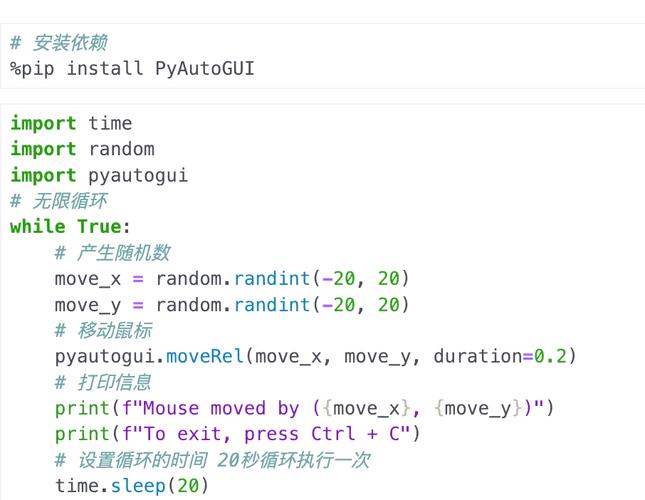
pyautogui is the go-to library for most automation tasks because it's simple, cross-platform, and works "out of the box" for basic key presses.
Installation
pip install pyautogui
How to Use
A. Pressing a Single Key This is the simplest case. Just pass the key name as a string.
import pyautogui
import time
print("Pressing the 'a' key in 3 seconds...")
time.sleep(3)
# Press the 'a' key
pyautogui.press('a')
print("Done.")
B. Pressing a Combination of Keys (e.g., Ctrl+C)
Use the hotkey() function.
import pyautogui
import time
print("Copying to clipboard in 3 seconds...")
time.sleep(3)
# Simulate pressing Ctrl+C
pyautogui.hotkey('ctrl', 'c')
print("Done.")
C. Typing a Full String of Text
Use the typewrite() function. Note that it doesn't automatically press Enter. You have to add it manually.
import pyautogui
import time
print("Typing 'Hello, World!' in 3 seconds...")
time.sleep(3)
# Type the text
pyautogui.typewrite('Hello, World!')
# Press the Enter key
pyautogui.press('enter')
print("Done.")
D. Controlling Key Up/Down Events
For more control, you can use keyDown() and keyUp(). This is useful for holding a key down while doing something else.
import pyautogui
import time
print("Holding down 'shift' and typing 'hello' in 3 seconds...")
time.sleep(3)
# Hold down the shift key
pyautogui.keyDown('shift')
# Type while shift is held down (this will produce 'HELLO')
pyautogui.typewrite('hello')
# Release the shift key
pyautogui.keyUp('shift')
print("Done.")
Note on Fail-Safes: pyautogui has a built-in safety feature. If you move the mouse cursor to the top-left corner of the screen, it will raise a pyautogui.FailSafeException and stop the script. You can disable it with pyautogui.FAILSAFE = False.
The Powerful Cross-Platform Option: pynput
pynput is another excellent cross-platform library. It's a bit more low-level than pyautogui and is part of a larger suite for controlling input devices.
Installation
pip install pynput
How to Use
The pynput approach separates the "controller" from the "listener". You create a Controller object to send events.
from pynput.keyboard import Controller, Key
import time
# Create a keyboard controller
keyboard = Controller()
print("Pressing 'a' in 3 seconds...")
time.sleep(3)
# Press a single key
keyboard.press('a')
keyboard.release('a')
print("Pressing 'ctrl+c' in 3 seconds...")
time.sleep(3)
# Press a combination of keys
keyboard.press(Key.ctrl)
keyboard.press('c')
# Release them in reverse order
keyboard.release('c')
keyboard.release(Key.ctrl)
print("Typing 'Hello World' in 3 seconds...")
time.sleep(3)
# Type a string
keyboard.type('Hello World')
The Windows-Only Powerhouse: pywin32 (or pywinauto)
If you are on Windows and need the most reliable and powerful control, pywin32 is the way to go. It interacts directly with the Windows API. pywinauto is built on top of pywin32 and is excellent for GUI automation, but win32com.client is the core for sending keys.
Installation
pip install pywin32
How to Use
This method is more verbose but gives you fine-grained control.
import time
import win32com.client
# Create a COM object for the Windows Script Host Shell
shell = win32com.client.Dispatch("WScript.Shell")
print("Pressing 'a' in 3 seconds...")
time.sleep(3)
# The SendKeys syntax is a bit different
# '{a}' means a single key, '+' is shift, '^' is ctrl, '%' is alt
shell.SendKeys("a")
print("Pressing 'Ctrl+C' in 3 seconds...")
time.sleep(3)
shell.SendKeys("^c") # ^ for Ctrl
print("Typing 'Hello World' in 3 seconds...")
time.sleep(3)
shell.SendKeys("Hello World")
print("Pressing 'Enter' in 3 seconds...")
time.sleep(3)
shell.SendKeys("{ENTER}")
The macOS-Native Option: AppKit
On macOS, the most "native" way to send key events is by using the AppKit framework, which is part of the standard library.
This approach is more complex but is more likely to work correctly with all applications, especially those that are security-conscious.
import time
from AppKit import NSEvent, NSKeyDown, NSKeyUp
def send_key(key_code):
    """
    Sends a key press and release event for a given key code.
    Key codes can be found online (e.g., for 'a' it's 0).
    """
    # Create a key down event
    key_down = NSEvent.keyEventWithLocation_modifierTimestamp_windowNumber_context_characters_isARepeat_keyCode_(
        None, 0, 0, 0, None, False, False, key_code
    )
    # Create a key up event
    key_up = NSEvent.keyEventWithLocation_modifierTimestamp_windowNumber_context_characters_isARepeat_keyCode_(
        None, 0, 0, 0, None, False, False, key_code
    )
    # Post the events to the system
    NSEvent.otherEventWithEventMask_location_modifierTimestamp_windowNumber_context_subtype_data1_data2_(
        NSApp, 0, None, 0, 0, 0, 0, 0
    ).postEventAtStart_(True) # Required for the events to be processed
# Example: Pressing the 'a' key (key code for 'a' is 0)
print("Pressing 'a' in 3 seconds...")
time.sleep(3)
send_key(0)
print("Done.")
Note: This is a simplified example. A full implementation would need a mapping from characters to key codes and handle special keys properly.
Which One to Choose? A Quick Guide
- For beginners or simple scripts: Use
pyautogui. It's the easiest to learn and works everywhere. - For complex automation or if you need to listen for keys at the same time: Use
pynput. - If you are only on Windows and need maximum reliability: Use
pywin32. - If you are on macOS and need a robust, native solution: Use
AppKit.