Of course! JTable is one of the most powerful and commonly used components in the Java Swing toolkit for displaying and editing tabular data. This comprehensive guide will cover everything from creating a basic table to advanced topics like custom rendering, sorting, and filtering.
The Core Components of a JTable
A JTable is more than just a visual grid. It's composed of three main parts:
JTableObject: The main component that you place on your GUI. It handles the user interaction, the scrolling, and the overall look and feel.TableModel: The data model. This is the most crucial part. It's an interface that defines how the table's data is stored and accessed. The most common implementation isDefaultTableModel. It separates your data from the view, so you can change the data without worrying about how it's displayed.JTable's View: This includes the column headers (JTableHeader) and the individual cells. The way data looks in a cell is controlled by aTableCellRenderer.
Key Interfaces:
TableModel: The interface for managing the table's data.TableModelListener: Notified when the table's data changes.TableCellRenderer: Controls how a single cell is drawn.TableCellEditor: Controls how a single cell is edited.
Creating a Simple JTable
The easiest way to get started is by using arrays or vectors to hold your data and column headers.
Example 1: Basic JTable with DefaultTableModel
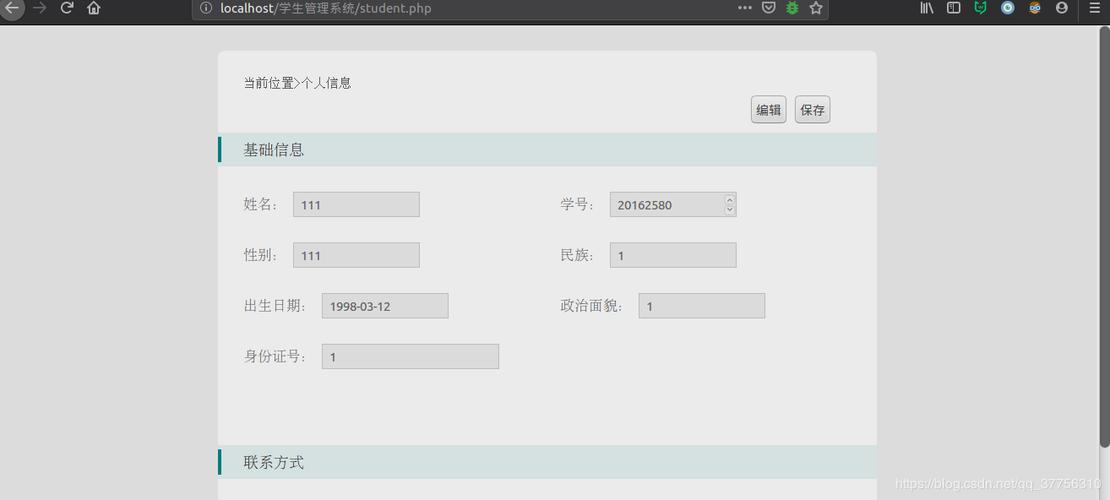
This example creates a table with some sample data and places it inside a JScrollPane (which is essential for tables, as they are often larger than the visible area).
import javax.swing.*;
import javax.swing.table.DefaultTableModel;
import java.awt.*;
public class SimpleJTableExample {
    public static void main(String[] args) {
        // Create a new JFrame
        JFrame frame = new JFrame("Simple JTable Example");
        frame.setDefaultCloseOperation(JFrame.EXIT_ON_CLOSE);
        frame.setSize(600, 400);
        frame.setLayout(new BorderLayout());
        // 1. Define Column Headers
        String[] columns = {"ID", "Name", "Email", "Join Date"};
        // 2. Define Data (a 2D Object array)
        // Each inner array is a row.
        Object[][] data = {
            {1, "Alice", "alice@example.com", "2025-01-15"},
            {2, "Bob", "bob@example.com", "2025-02-20"},
            {3, "Charlie", "charlie@example.com", "2025-03-10"},
            {4, "Diana", "diana@example.com", "2025-04-05"}
        };
        // 3. Create a TableModel
        DefaultTableModel model = new DefaultTableModel(data, columns);
        // 4. Create the JTable with the model
        JTable table = new JTable(model);
        // 5. Add the table to a JScrollPane (very important!)
        JScrollPane scrollPane = new JScrollPane(table);
        // 6. Add the JScrollPane to the frame
        frame.add(scrollPane, BorderLayout.CENTER);
        // Make the frame visible
        frame.setVisible(true);
    }
}
To run this:
- Save the code as
SimpleJTableExample.java. - Compile:
javac SimpleJTableExample.java - Run:
java SimpleJTableExample
You will see a window with a scrollable table.
Modifying Table Data
The DefaultTableModel provides convenient methods to add, remove, and update data.
// Assuming 'model' is your DefaultTableModel from the previous example
// Add a new row
model.addRow(new Object[]{5, "Eve", "eve@example.com", "2025-05-30"});
// Add a new column
model.addColumn("Status");
// Now you need to update existing rows to have a value for the new column
for (int i = 0; i < model.getRowCount(); i++) {
    model.setValueAt("Active", i, model.getColumnCount() - 1);
}
// Update a specific cell (row 2, column 1)
model.setValueAt("Charles", 2, 1); // Changes "Charlie" to "Charles"
// Remove a row (e.g., the row with ID 2, which is at index 1)
model.removeRow(1);
// Get the value of a cell
String name = (String) model.getValueAt(0, 1); // Gets "Alice"
System.out.println("First user's name: " + name);
Customizing the Table Appearance
By default, all cells look the same. You can customize them using TableCellRenderer.
A common pattern is to create a class that implements TableCellRenderer and use it for specific columns or cell types.
Example 2: Custom Cell Renderer for Right-Aligned Numbers
Let's align the "ID" column to the right.
import javax.swing.*;
import javax.swing.table.DefaultTableCellRenderer;
import java.awt.*;
// A custom renderer for right-aligning numbers
class RightAlignRenderer extends DefaultTableCellRenderer {
    public RightAlignRenderer() {
        setHorizontalAlignment(JLabel.RIGHT);
    }
}
// ... inside your main class, after creating the table ...
// Get the column model
JTableHeader header = table.getTableHeader();
header.setBackground(new Color(70, 130, 180)); // Steel blue header
// Apply the custom renderer to the "ID" column (column index 0)
table.getColumnModel().getColumn(0).setCellRenderer(new RightAlignRenderer());
// You can also set a preferred width for a column
table.getColumnModel().getColumn(2).setPreferredWidth(200); // Make the Email column wider
Enabling and Handling Cell Editing
By default, JTable allows editing. You can control this and handle edit events.
// Make the "Name" column non-editable
table.getColumnModel().getColumn(1).setCellEditor(null); // null means non-editable
// Or, make the entire table non-editable
table.setEnabled(false); // This also disables selection
// To handle edit events, you need a TableModelListener
model.addTableModelListener(e -> {
    if (e.getType() == TableModelEvent.UPDATE) {
        int row = e.getFirstRow();
        int column = e.getColumn();
        String columnName = model.getColumnName(column);
        Object newValue = model.getValueAt(row, column);
        System.out.println("Cell (" + row + ", " + columnName + ") updated to: " + newValue);
    }
});
Sorting and Filtering
JTable doesn't have built-in sorting or filtering. You need to use a wrapper class.
Sorting with TableRowSorter
The TableRowSorter is the standard way to add sorting capabilities. It works best with a TableModel that can identify the data type of each column (like JDBC's ResultSetTableModel or a custom model). For DefaultTableModel, it sorts everything as strings.
import javax.swing.table.TableRowSorter;
// ... inside your main class ...
// Create a TableRowSorter
TableRowSorter<DefaultTableModel> sorter = new TableRowSorter<>(model);
// Set the sorter to the table
table.setRowSorter(sorter);
// You can also filter the table
// Example: Filter to show only users whose name starts with 'A'
RowFilter<DefaultTableModel, Object> nameFilter = RowFilter.regexFilter("^A");
sorter.setRowFilter(nameFilter);
// To remove the filter:
// sorter.setRowFilter(null);
Best Practice: Using a Custom Model
While DefaultTableModel is great for simple cases, for larger applications, it's better to create your own model that extends AbstractTableModel. This gives you full control and can be more efficient.
Example 3: AbstractTableModel for a List of Objects
This is a very common and robust pattern.
The Data Object (POJO - Plain Old Java Object)
// User.java
public class User {
    private int id;
    private String name;
    private String email;
    public User(int id, String name, String email) {
        this.id = id;
        this.name = name;
        this.email = email;
    }
    // Getters
    public int getId() { return id; }
    public String getName() { return name; }
    public String getEmail() { return email; }
}
The Custom Table Model
// UserTableModel.java
import javax.swing.table.AbstractTableModel;
import java.util.List;
public class UserTableModel extends AbstractTableModel {
    private final List<User> users;
    private final String[] columnNames = {"ID", "Name", "Email"};
    public UserTableModel(List<User> users) {
        this.users = users;
    }
    @Override
    public int getRowCount() {
        return users.size();
    }
    @Override
    public int getColumnCount() {
        return columnNames.length;
    }
    @Override
    public String getColumnName(int column) {
        return columnNames[column];
    }
    @Override
    public Object getValueAt(int rowIndex, int columnIndex) {
        User user = users.get(rowIndex);
        switch (columnIndex) {
            case 0: return user.getId();
            case 1: return user.getName();
            case 2: return user.getEmail();
            default: return null;
        }
    }
    // Optional: Make cells editable
    @Override
    public boolean isCellEditable(int rowIndex, int columnIndex) {
        // Let's say only the name is editable
        return columnIndex == 1;
    }
    @Override
    public void setValueAt(Object aValue, int rowIndex, int columnIndex) {
        User user = users.get(rowIndex);
        if (columnIndex == 1) {
            user.setName((String) aValue);
            fireTableCellUpdated(rowIndex, columnIndex); // Notify listeners
        }
    }
}
Using the Custom Model in the GUI
// In your main JFrame class
import java.util.ArrayList;
import java.util.List;
public class AdvancedJTableExample {
    public static void main(String[] args) {
        JFrame frame = new JFrame("Advanced JTable with Custom Model");
        frame.setDefaultCloseOperation(JFrame.EXIT_ON_CLOSE);
        frame.setSize(700, 400);
        frame.setLayout(new BorderLayout());
        // 1. Create your data
        List<User> userList = new ArrayList<>();
        userList.add(new User(1, "Alice", "alice@example.com"));
        userList.add(new User(2, "Bob", "bob@example.com"));
        userList.add(new User(3, "Charlie", "charlie@example.com"));
        // 2. Create the custom model
        UserTableModel model = new UserTableModel(userList);
        // 3. Create the JTable
        JTable table = new JTable(model);
        // 4. Add to a JScrollPane
        JScrollPane scrollPane = new JScrollPane(table);
        frame.add(scrollPane, BorderLayout.CENTER);
        // 5. Add sorting (works better with AbstractTableModel)
        table.setAutoCreateRowSorter(true); // Easy way to enable sorting
        frame.setVisible(true);
    }
}
Summary of Key Takeaways
| Concept | Description | Key Classes/Methods |
|---|---|---|
| Data Model | Separates data from the view. | TableModel, DefaultTableModel, AbstractTableModel |
| Display | The visual component. | JTable |
| Scrolling | Essential for large tables. | JScrollPane |
| Columns | Control appearance and behavior. | TableColumn, setPreferredWidth(), setCellRenderer() |
| Editing | Control if and how cells are edited. | setCellEditor(), isCellEditable(), setValueAt() |
| Sorting | Allow users to sort by clicking headers. | TableRowSorter, setAutoCreateRowSorter(true) |
| Filtering | Show only a subset of data. | RowFilter |
| Best Practice | For complex applications, use a custom AbstractTableModel that wraps a List of your domain objects. |
AbstractTableModel, List<T> |