Of course! The term "mkhtmltopdf" isn't a standard Python library, but it's a great description of a very common task: converting HTML content into a PDF document.

There are several excellent Python libraries to achieve this. I'll guide you through the most popular and effective ones, from simple to more powerful.
Here's a breakdown of the best options:
pdfkit: The easiest way. It's a wrapper around the command-line tool wkhtmltopdf. Perfect for simple to moderately complex HTML.WeasyPrint: A powerful, modern library that renders HTML and CSS directly. Excellent for complex layouts and standards compliance.xhtml2pdf: Another solid library that uses ReportLab as its rendering engine. It's quite robust and flexible.
Method 1: pdfkit (The Easiest & Most Popular)
This is the go-to solution for many developers because it's simple to set up and use. It acts as a bridge between Python and the fantastic wkhtmltopdf tool.
Step 1: Install wkhtmltopdf (Prerequisite)
pdfkit needs the actual wkhtmltopdf executable to be installed on your system. It's not a Python library itself.
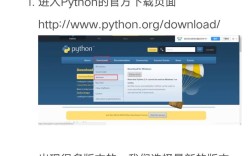
- Windows: Download the installer from the official website. Make sure to note the installation path (e.g.,
C:\Program Files\wkhtmltopdf\bin). - macOS: Use Homebrew:
brew install wkhtmltopdf
- Linux (Debian/Ubuntu):
sudo apt-get update
sudo apt-get install wkhtmltopdf
Step 2: Install the pdfkit Python Library
pip install pdfkit
Step 3: Use it in Python
You can convert a string of HTML, a file, or a URL.
import pdfkit
# 1. Convert a string of HTML
html_string = """
<html>
<head>PDF from String</title>
    <style>
        body { font-family: sans-serif; }
        h1 { color: #2c3e50; }
        p { font-size: 1.2em; }
    </style>
</head>
<body>
    <h1>Hello, PDF World!</h1>
    <p>This PDF was generated from a string of HTML using pdfkit and wkhtmltopdf.</p>
    <p>Here is a link: <a href="https://www.python.org">Python.org</a></p>
</body>
</html>
"""
# The path to your wkhtmltopdf executable
# On Windows, it might look like: 'C:/Program Files/wkhtmltopdf/bin/wkhtmltopdf.exe'
# On macOS/Linux, you might not need this if it's in your system PATH
path_to_wkhtmltopdf = '/usr/local/bin/wkhtmltopdf' # Example for macOS
# Convert the string to a PDF file
pdfkit.from_string(html_string, 'output_from_string.pdf')
# 2. Convert an HTML file
# First, let's create an HTML file
with open('my_page.html', 'w') as f:
    f.write(html_string)
# Now convert it
pdfkit.from_file('my_page.html', 'output_from_file.pdf')
# 3. Convert a URL
pdfkit.from_url('https://en.wikipedia.org/wiki/Python_(programming_language)', 'output_from_url.pdf')
print("PDFs generated successfully!")
Pros:
- Extremely easy to use.
- Handles most common HTML/CSS well.
- Can convert URLs directly.
Cons:
- Relies on an external executable (
wkhtmltopdf). - Can be slow for large documents.
- Doesn't support the latest CSS3 features as well as a browser engine.
Method 2: WeasyPrint (The Modern & Powerful Choice)
WeasyPrint is a pure-Python library that parses HTML and CSS and draws them onto a PDF canvas. It's more standards-compliant and doesn't require any external dependencies.
Step 1: Install WeasyPrint
It's recommended to install it via pip.
pip install WeasyPrint
You might also need to install system dependencies for fonts and Cairo graphics:
- macOS:
brew install cairo pango libffi - Linux (Debian/Ubuntu):
sudo apt-get install build-essential python3-dev python3-pip python3-setuptools python3-wheel libcairo2-dev libpango1.0-dev libgdk-pixbuf2.0-dev libffi-dev shared-mime-info - Windows: Can be tricky. Follow the official Windows installation guide.
Step 2: Use it in Python
The API is very straightforward.
import weasyprint
# HTML content with some advanced CSS
html_content = """
<html>
<head>WeasyPrint Example</title>
    <style>
        @page {
            size: A4;
            margin: 2cm;
        }
        body {
            font-family: "Noto Sans", sans-serif;
            line-height: 1.6;
        }
        .header {
            background-color: #3498db;
            color: white;
            padding: 20px;
            text-align: center;
        }
        .content {
            column-count: 2; /* Multi-column layout! */
            column-gap: 2em;
        }
        h2 {
            color: #2c3e50;
            border-bottom: 2px solid #ecf0f1;
            padding-bottom: 10px;
        }
    </style>
</head>
<body>
    <div class="header">
        <h1>A Beautiful PDF with WeasyPrint</h1>
    </div>
    <div class="content">
        <p>WeasyPrint is a visual rendering engine for HTML and CSS. It can convert HTML documents to PDF, PNG, or image formats.</p>
        <p>It supports modern CSS features like Flexbox, Grid, and even multi-column layouts, making it a fantastic choice for generating high-quality documents programmatically.</p>
        <p>Unlike pdfkit, it doesn't rely on an external browser engine. It's a self-contained Python library that does the rendering itself.</p>
        <p>This means it's more portable and can be used in server environments where you can't install system-level dependencies like wkhtmltopdf.</p>
    </div>
</body>
</html>
"""
# Generate the PDF from the HTML string
weasyprint.HTML(string=html_content).write_pdf('output_weasyprint.pdf')
print("WeasyPrint PDF generated successfully!")
Pros:
- Excellent CSS3 support (Flexbox, Grid, etc.).
- No external dependencies required.
- Pure Python, highly portable.
- Great for complex layouts.
Cons:
- Installation can be more complex on some systems (especially Windows).
- Might be slightly slower than
pdfkitfor very simple tasks.
Method 3: xhtml2pdf (The Robust Alternative)
xhtml2pdf uses the powerful ReportLab library for PDF generation. It's a very solid and flexible option.
Step 1: Install xhtml2pdf
pip install xhtml2pdf
Step 2: Use it in Python
from xhtml2pdf import pisa
# HTML content
source_html = """
<html>
<head>xhtml2pdf Example</title>
    <style>
        body { font-family: Arial, sans-serif; }
        table {
            width: 100%;
            border-collapse: collapse;
        }
        th, td {
            border: 1px solid #dddddd;
            text-align: left;
            padding: 8px;
        }
        th {
            background-color: #f2f2f2;
        }
    </style>
</head>
<body>
    <h1>xhtml2pdf Report Example</h1>
    <p>This PDF demonstrates a simple table generated with xhtml2pdf.</p>
    <table>
        <tr>
            <th>Product</th>
            <th>Quantity</th>
            <th>Price</th>
        </tr>
        <tr>
            <td>Laptop</td>
            <td>1</td>
            <td>$1200</td>
        </tr>
        <tr>
            <td>Mouse</td>
            <td>2</td>
            <td>$25</td>
        </tr>
        <tr>
            <td>Keyboard</td>
            <td>1</td>
            <td>$75</td>
        </tr>
    </table>
</body>
</html>
"""
# Define the output filename
output_filename = "output_xhtml2pdf.pdf"
# Convert HTML to PDF
with open(output_filename, "w+b") as result_file:
    pisa_status = pisa.CreatePDF(
        source_html,                # the HTML to convert
        dest=result_file)           # file handle to receive result
# check convertion status
if pisa_status.err:
    print("Error converting HTML to PDF!")
else:
    print(f"Successfully created {output_filename}")
Pros:
- Very robust and mature.
- Good integration with Python's templating engines (like Jinja2).
- Handles tables and forms well.
Cons:
- CSS support can be a bit dated compared to
WeasyPrint. - The API can feel less "Pythonic" than the others.
Summary: Which One Should You Choose?
| Library | Best For | Key Advantage | Key Disadvantage |
|---|---|---|---|
pdfkit |
Quick & Simple tasks | Easiest setup, handles URLs well | Relies on external wkhtmltopdf |
WeasyPrint |
Complex layouts & modern CSS | Best CSS support, no external deps | Can be tricky to install on Windows |
xhtml2pdf |
Robust reports & templating | Mature, great for tables/forms | CSS support can be limited |
My recommendation:
- Start with
pdfkit. It will solve 80% of the problems you throw at it with minimal effort. - If you need advanced CSS (like Flexbox/Grid) or run into issues with
pdfkit, switch toWeasyPrint. It's the modern, future-proof choice. - If you are generating complex reports from templates (especially with Jinja2) or need very fine-grained control over the PDF generation process,
xhtml2pdfis an excellent, battle-tested option.