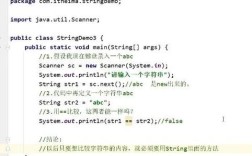
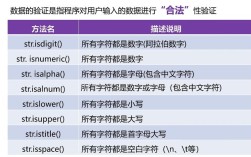
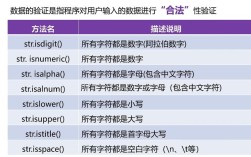
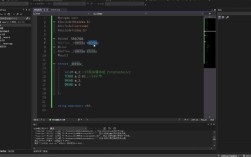
When people say "Eclipse for Java," they are almost always referring to the Eclipse IDE for Java Developers. It is one of the most popular, free, open-source Integrated Development Environments (IDEs) used for writing Java code.
Here is a complete guide on what it is, how to get it, and how to use it.
Which version should I download?
Eclipse comes in many different "flavors" (packages). For standard Java programming, you need the specific package labeled:
👉 Eclipse IDE for Java Developers
Note: If you are developing enterprise web applications (Spring, Jakarta EE), you might want "Eclipse IDE for Enterprise Java and Web Developers," but for learning or standard application development, the standard Java Developers version is perfect.
Prerequisite: Install Java first
Eclipse does not include Java internally; it uses the Java installation on your computer.
- Download JDK: Go to Adoptium (Temurin) or Oracle.
- Install: Run the installer for the latest LTS version (Java 21 or Java 17 are recommended).
- Verify: Open a command prompt/terminal and type
java -versionto ensure it works.
How to Install Eclipse
- Go to the Eclipse Downloads page.
- Click Download x86_64 (for Windows or macOS).
- Run the Eclipse Installer.
- In the menu that appears, click the folder icon labeled Eclipse IDE for Java Developers.
- Keep the installation settings default (Installation Folder, Java VM) and click Install.
- Accept the licenses and let it finish. Launch Eclipse when done.
Getting Started: Your First Java Program
When you open Eclipse for the first time, it will ask you to choose a Workspace. This is just a folder on your computer where your projects will be saved. You can accept the default path.
To create your first program:
-
Create a Project:
- Go to
File>New>Java Project. - Give it a name (e.g.,
MyFirstProject). - Ensure "Execution environment" is set to a Java version you installed.
- Click Finish.
- Go to
-
Create a Class:
- In the "Package Explorer" on the left, right-click on the
srcfolder. - Select
New>Class. - Name it (e.g.,
Main). Convention: Class names start with a capital letter. - Check the box that says
public static void main(String[] args). - Click Finish.
- In the "Package Explorer" on the left, right-click on the
-
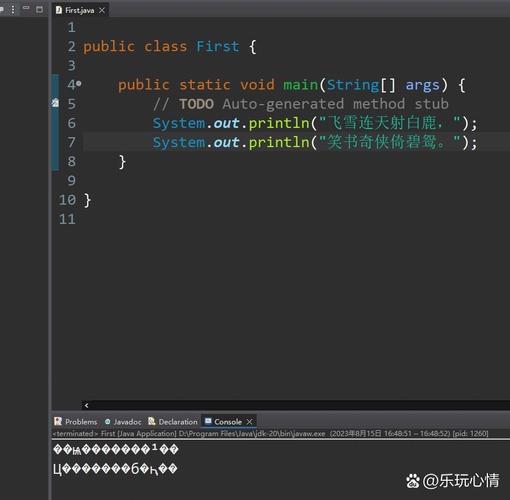
Write Code:
- Eclipse will generate some code for you. Inside the
mainmethod, type:System.out.println("Hello, Eclipse!");
- Eclipse will generate some code for you. Inside the
-
Run:
- Right-click anywhere in the code editor.
- Select
Run As>Java Application. - Look at the bottom "Console" tab to see your output.
Key Features to Know
- Content Assist (Auto-complete): Start typing a word and press Ctrl + Space. Eclipse will suggest variable names, methods, and complete code blocks.
- Quick Fix: If you have an error (red underline), hover your mouse over it (or press Ctrl + 1). Eclipse will often suggest how to fix it (e.g., importing a missing library).
- Perspectives: Eclipse changes its layout based on what you are doing. Ensure you are in the "Java" perspective (top right corner icon) for standard coding.
Eclipse vs. IntelliJ IDEA
While Eclipse is a powerhouse, the landscape has changed over the years.
- IntelliJ IDEA (Community Edition): Many developers consider this the modern standard. It often has smarter auto-complete and a cleaner interface.
- Eclipse: Is still widely used in large corporations, universities, and by developers who prefer its highly customizable nature and plugin ecosystem.
Summary: If you are a student or a developer needing a robust, free tool for Java, Eclipse is an excellent choice.